Quick Start Guide - Sign up and configuration
This guide provides a straightforward, step-by-step process for creating a new Voqara account and setting up your first project, making it ideal for beginners. By following these instructions, users can quickly navigate the platform, ensuring a smooth onboarding experience. It simplifies the initial setup, allowing users to focus on their projects rather than getting bogged down by technical details. Viewing this guide will empower you to efficiently utilize Voqara's features from the start.
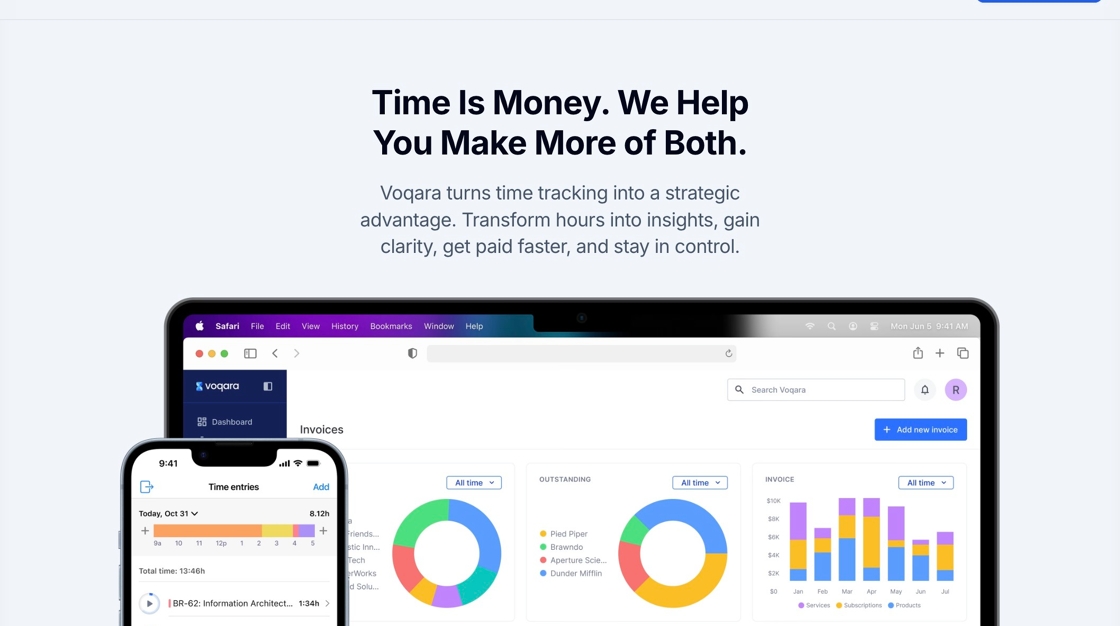
1. Navigate to https://voqara.com/
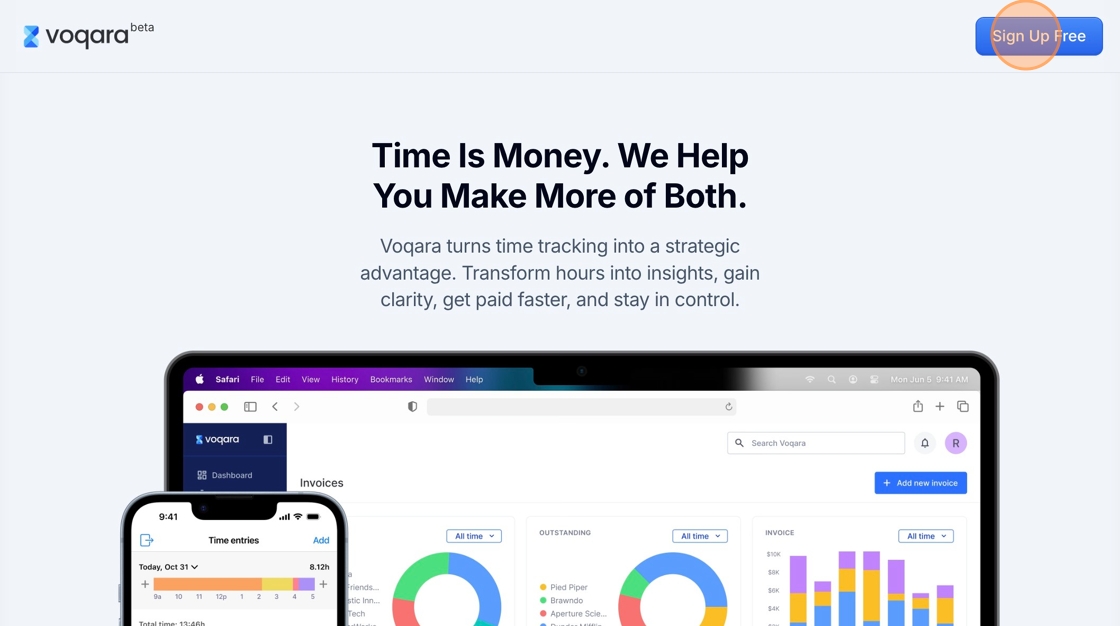
2. Click "Sign Up Free"
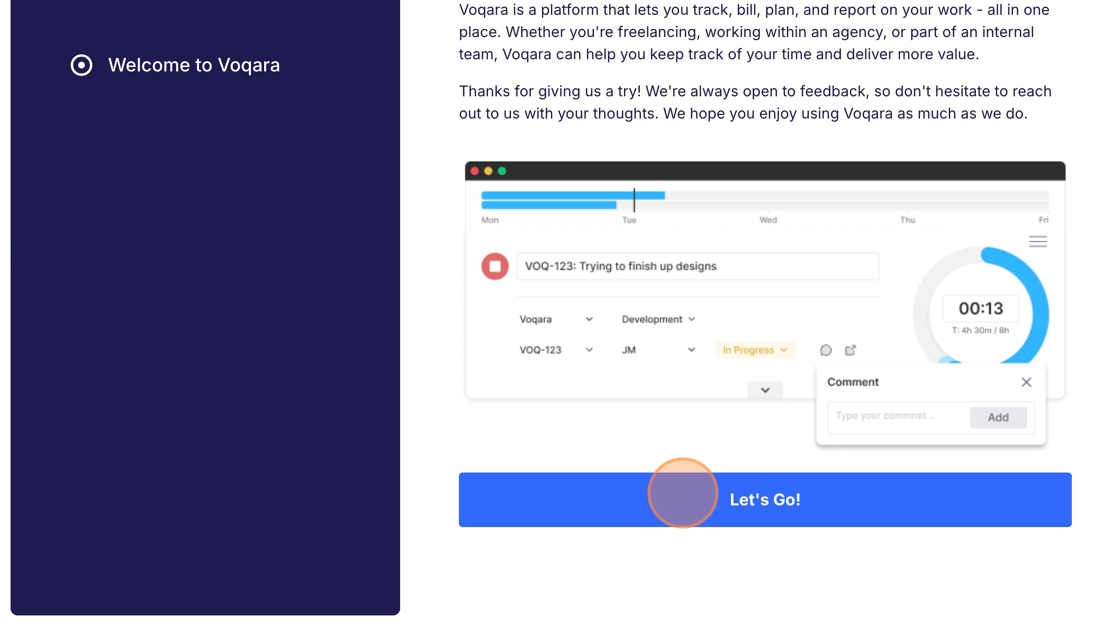
3. Click "Let's Go!"
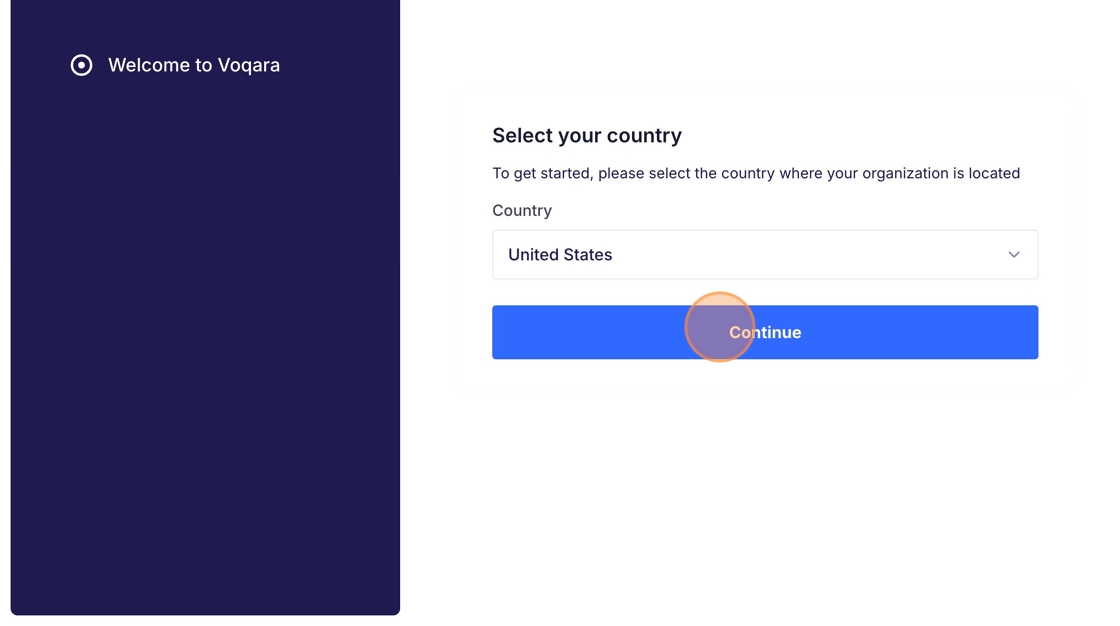
4. Select your country then click "Continue"
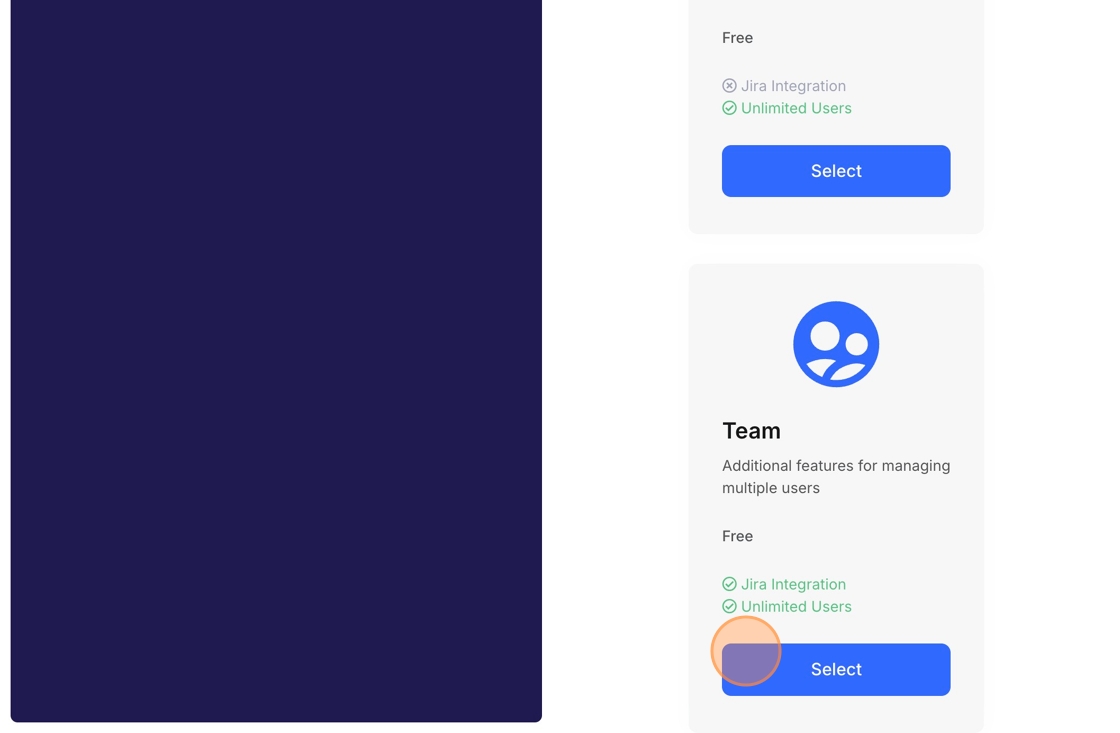
5. Click "Select" next the the package you want to sign up for "Freelance or Team"
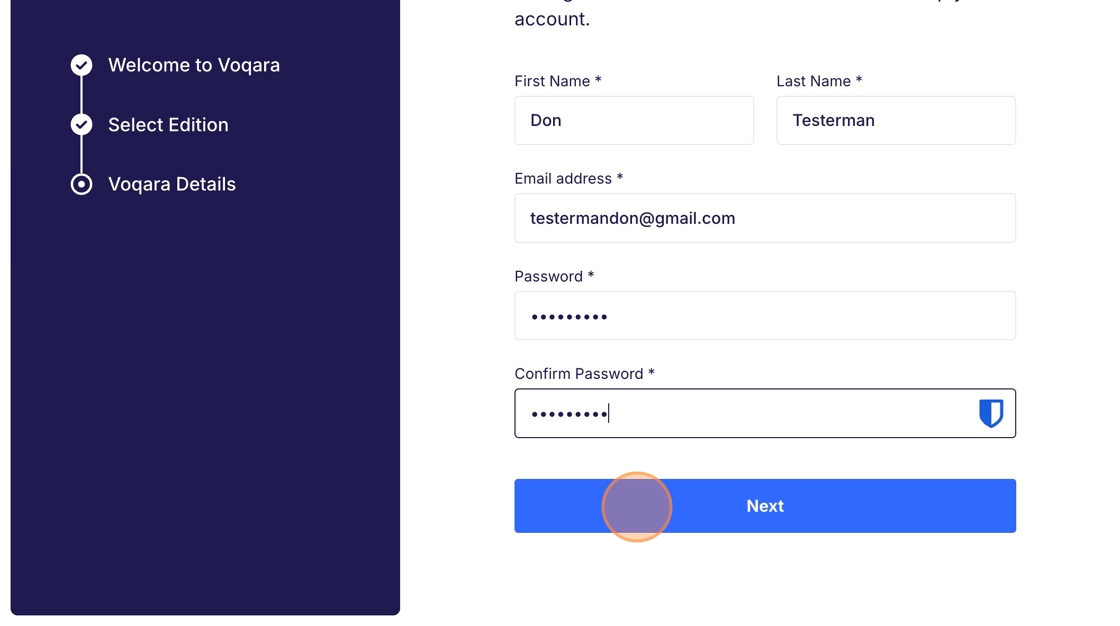
6. Fill out your personal information then click "Next"
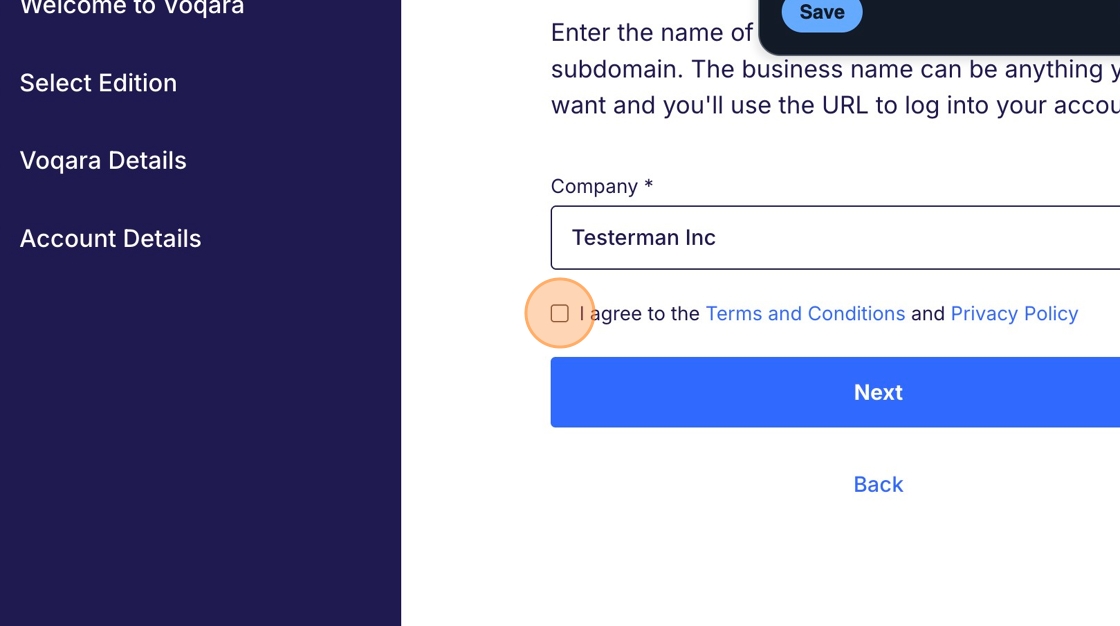
7. Enter your company name and review and agree to the terms and conditions and privacy policy. Then click next
8. Switch over to your Inbox to confirm your email.
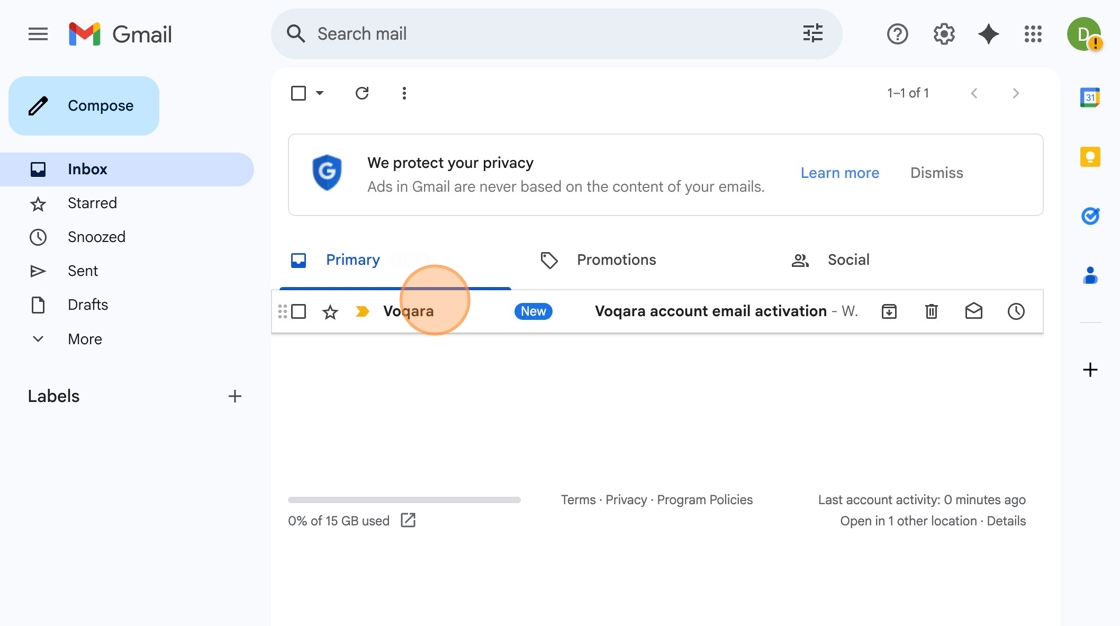
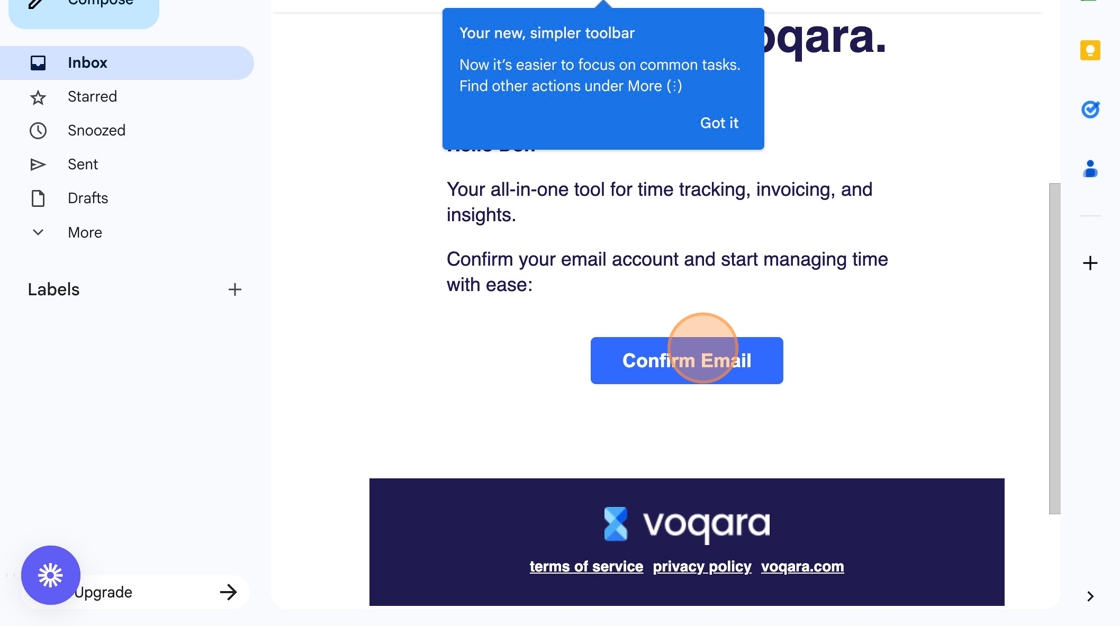
9. Find the confirmation email in your inbox and click "Confirm Email"
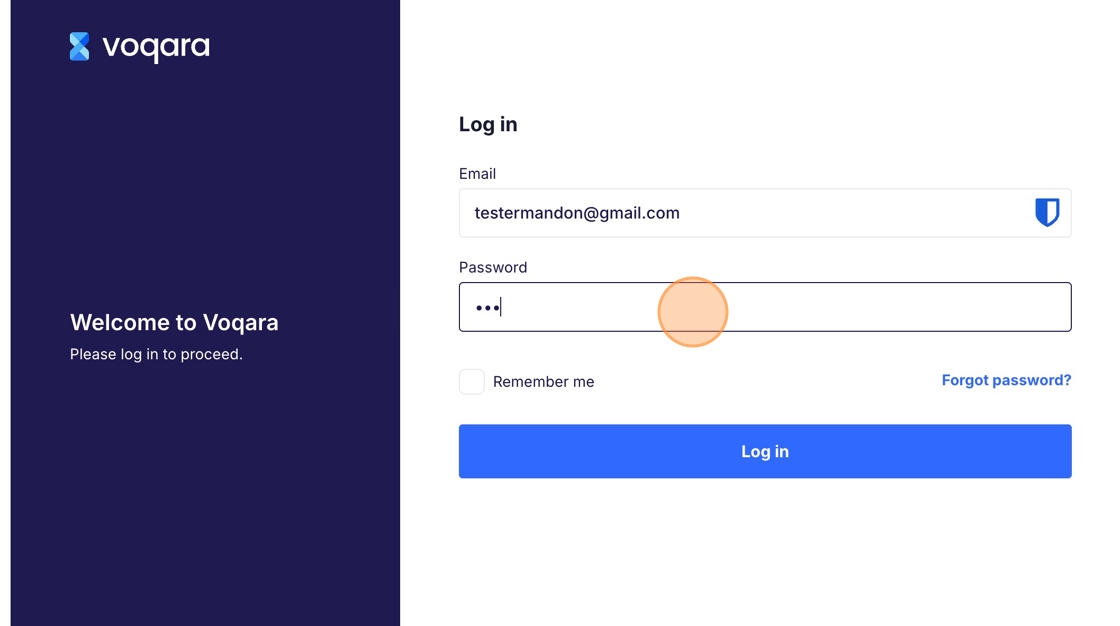
10. You will be redirected back to Voqara to log in. Enter your email and password, then click "Log in"
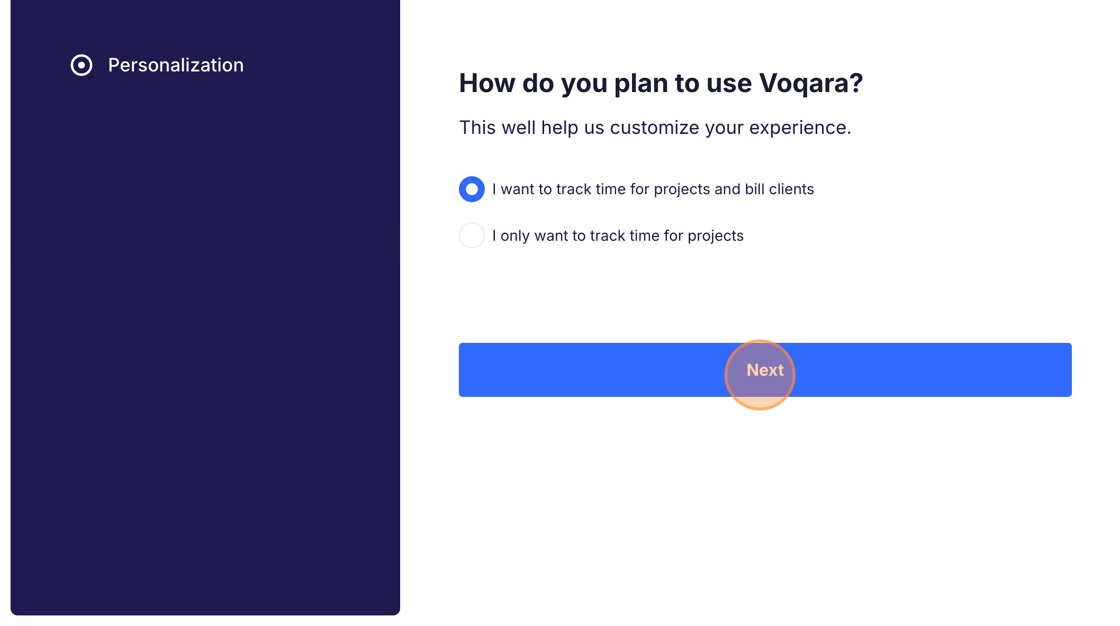
11. After logging in you will be redirected to finish your Voqara setup. Select whether you want to track time and bill clients or just track time. Then click next
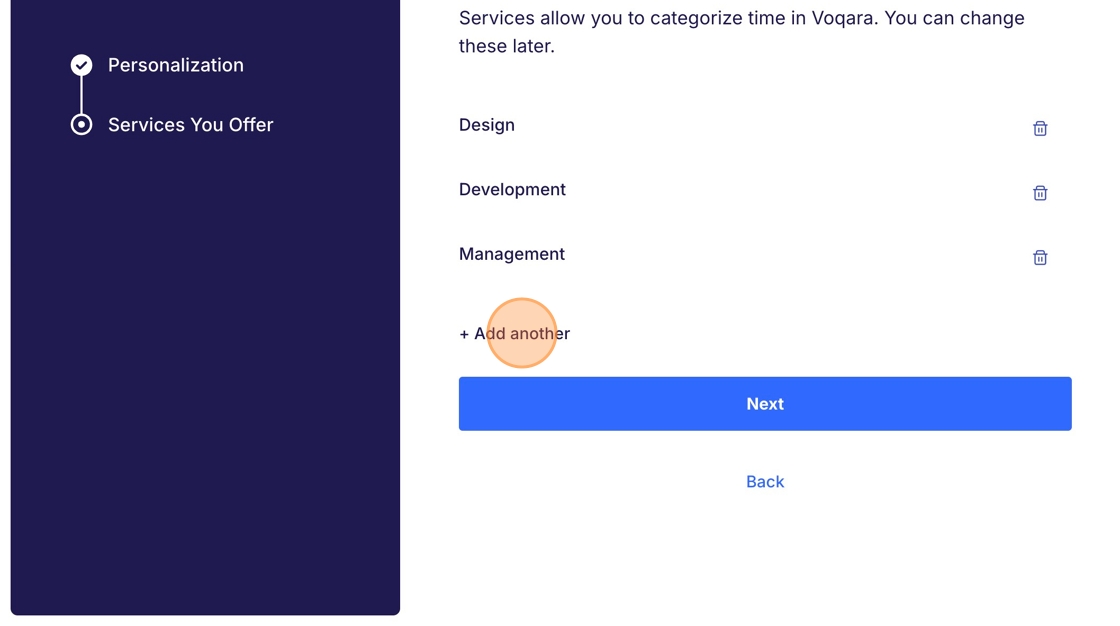
12. Review the services you wish to offer and add/remove any that are necessary to complete your offerings. Don't forget to click the green checkmark next to newly added services to confirm them. You will be able to edit this later as well. When complete - click next
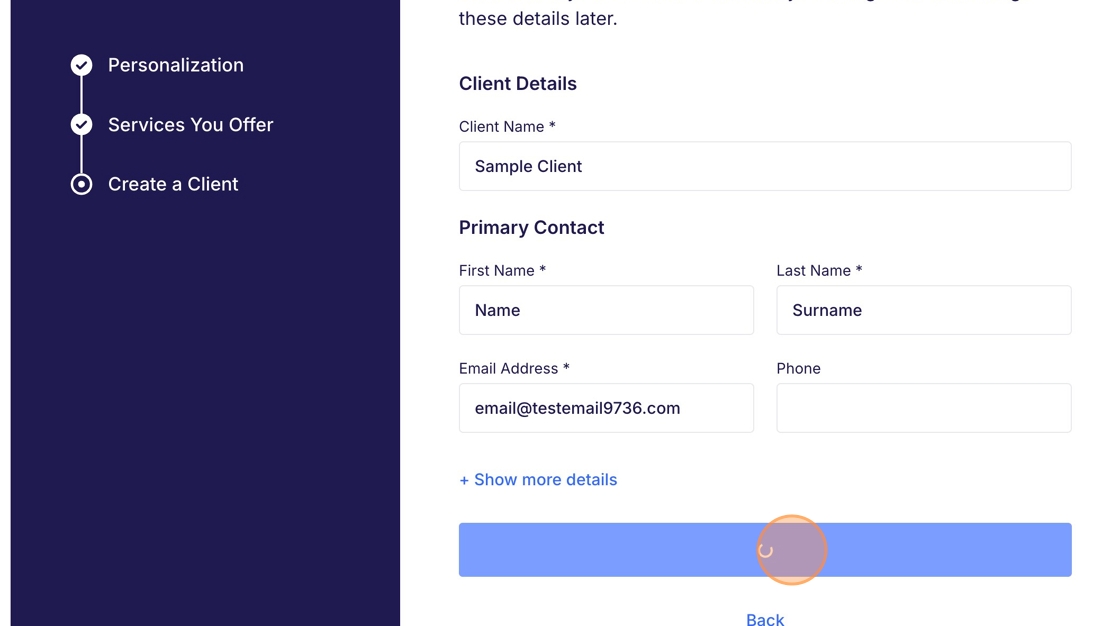
13. Fill out the information for your first client. You will be able to edit this later as well. Then click next
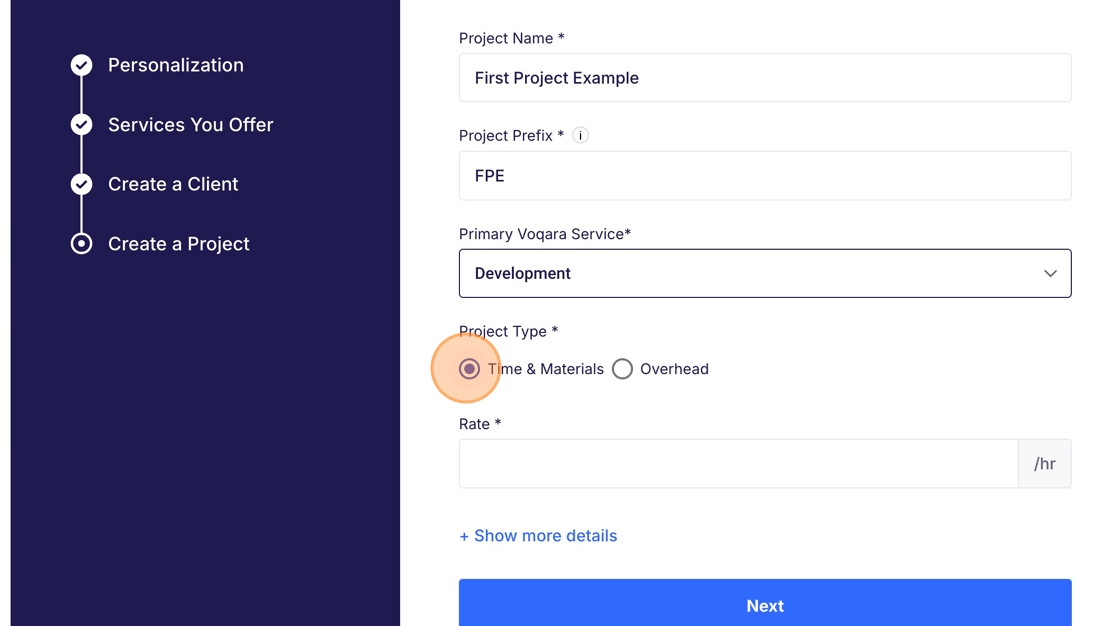
14. Fill out the information for the initial project for your first client including the project primary (Default) service, billing structure (Time & Materials vs Overhead) and default rate. You will be able to edit this later as well. Then click next
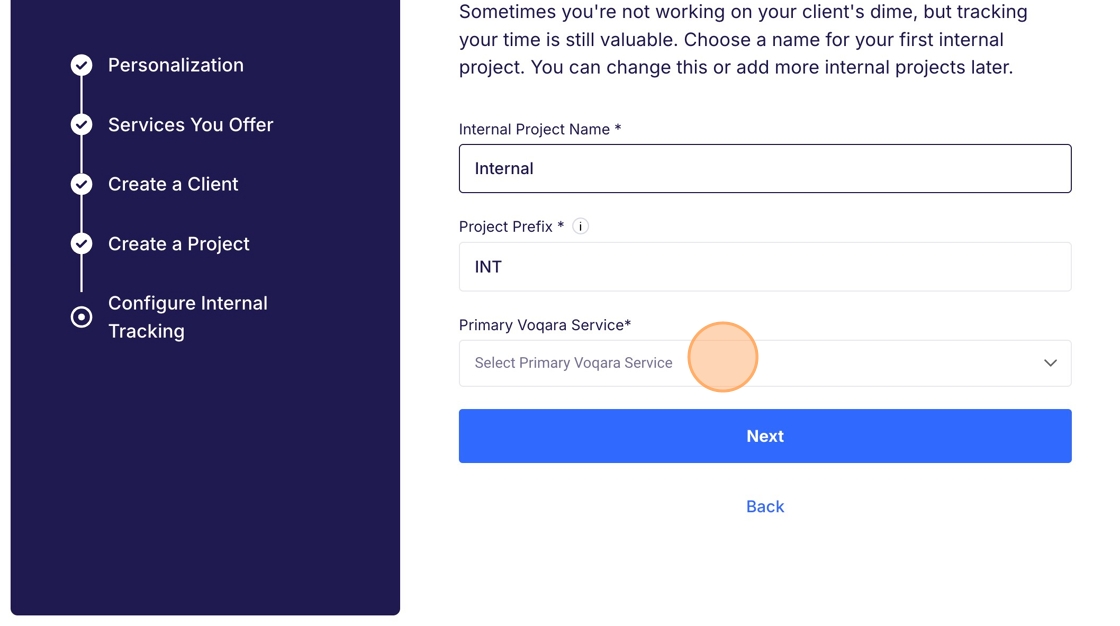
15. Set a default internal billing service code. You will be able to edit this later as well. Then click next
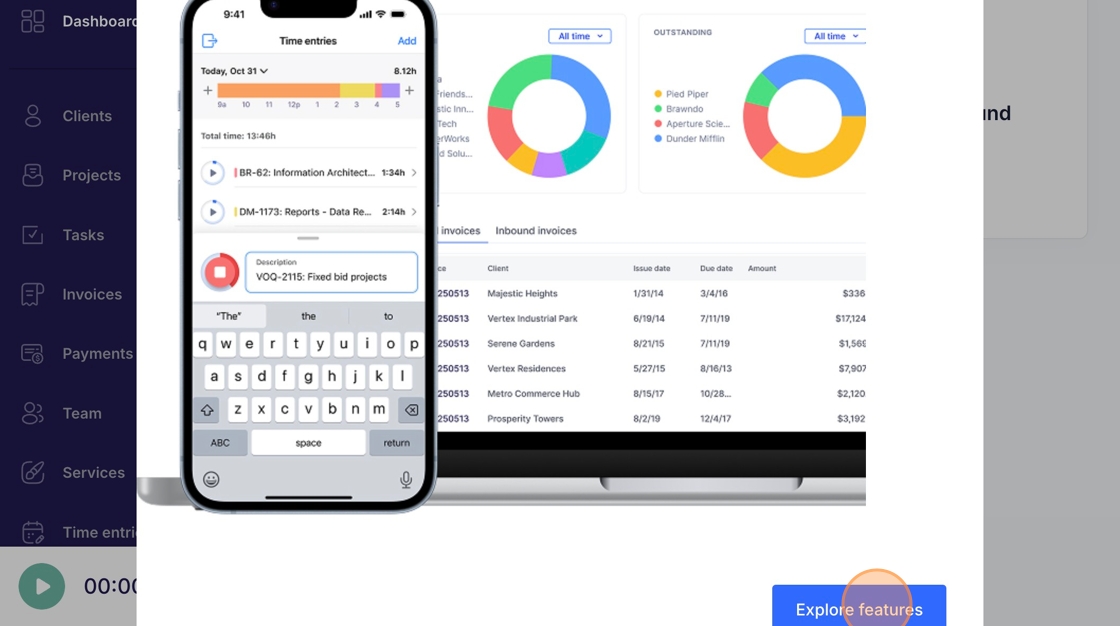
16. Lastly you will be redirected into the app where you will be prompted to explore Voqara's features. Once complete you are free to utilize Voqara!