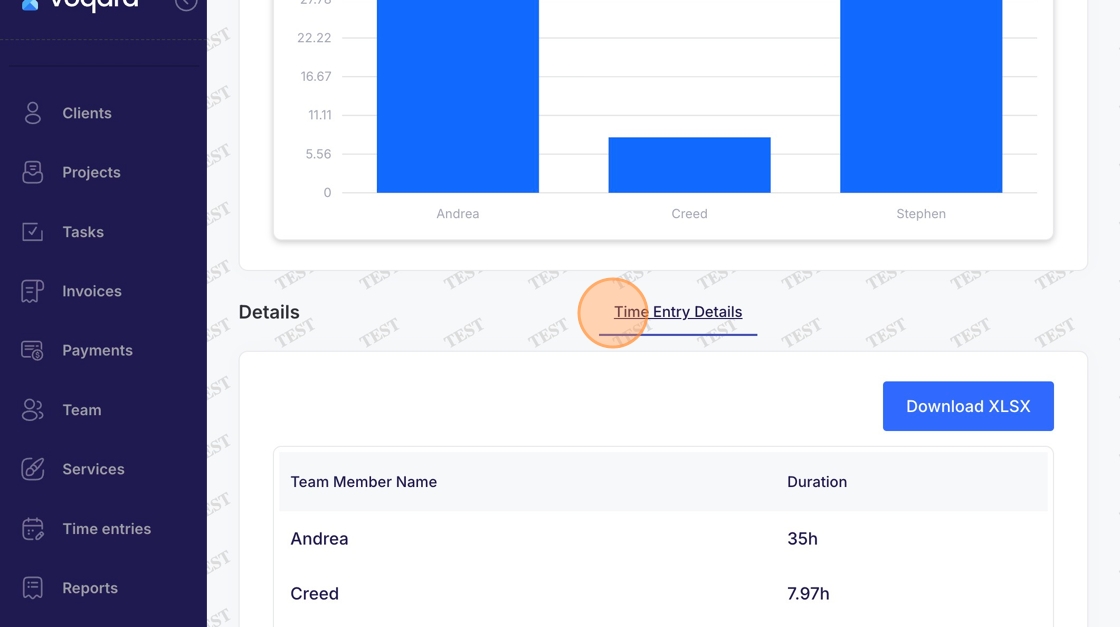
Reports - Generate Custom Report
This guide demonstrates how to generate custom reports in Voqara.
Made by Tusk Support with Scribe
This guide demonstrates how to generate custom reports in Voqara.
1. Log into Voqara
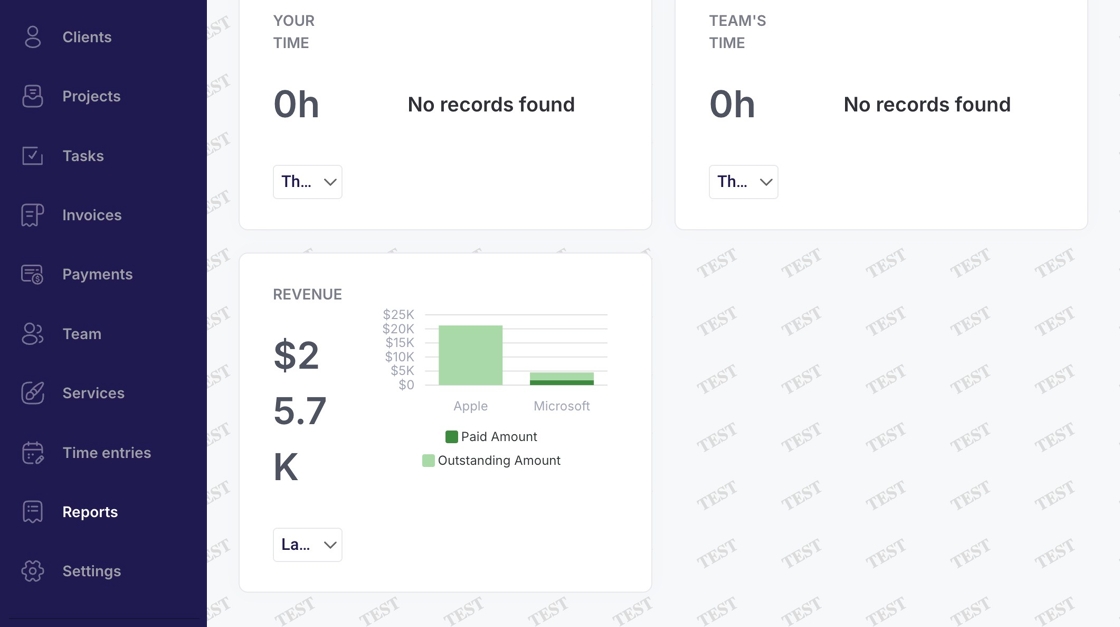
2. Navigate to "Reports"
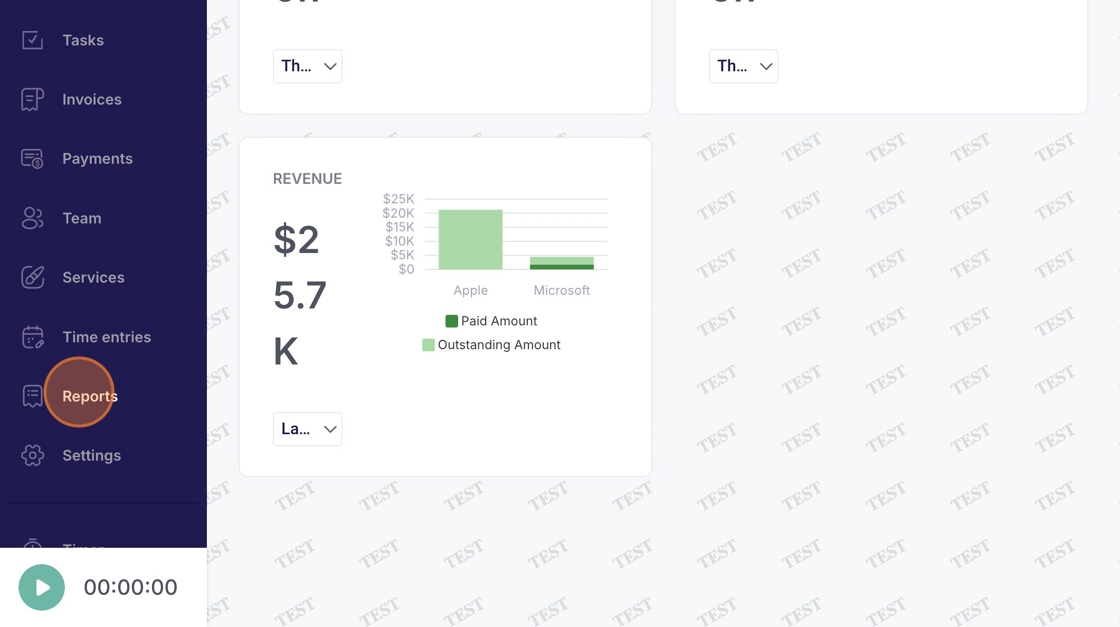
3. Click "Custom"
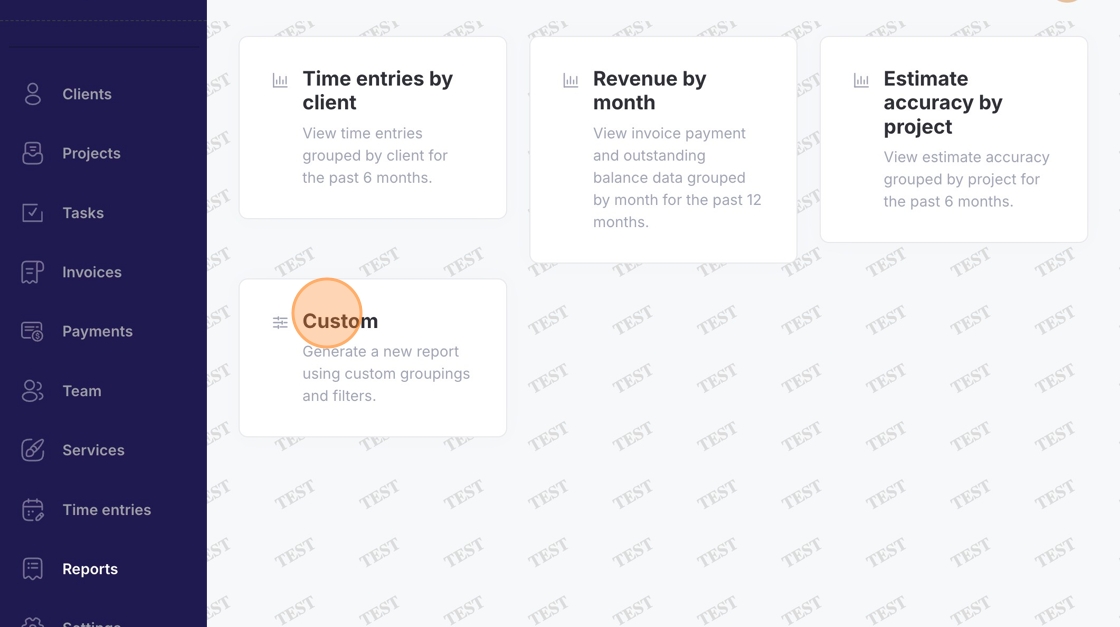
4. Click "Report Type" dropdown menu
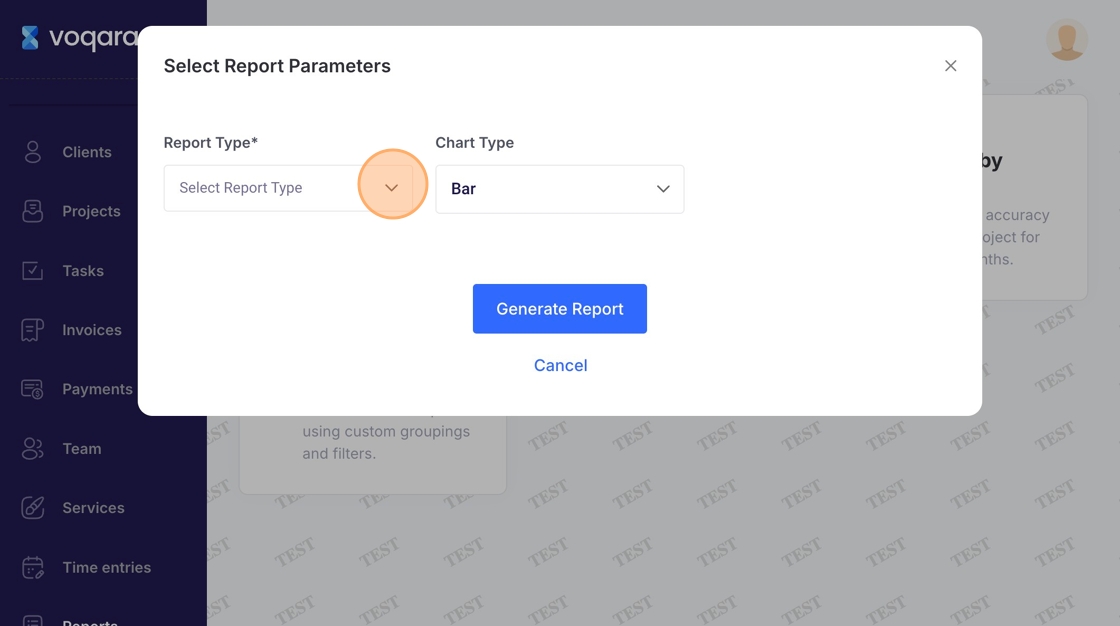
5. Select a report type
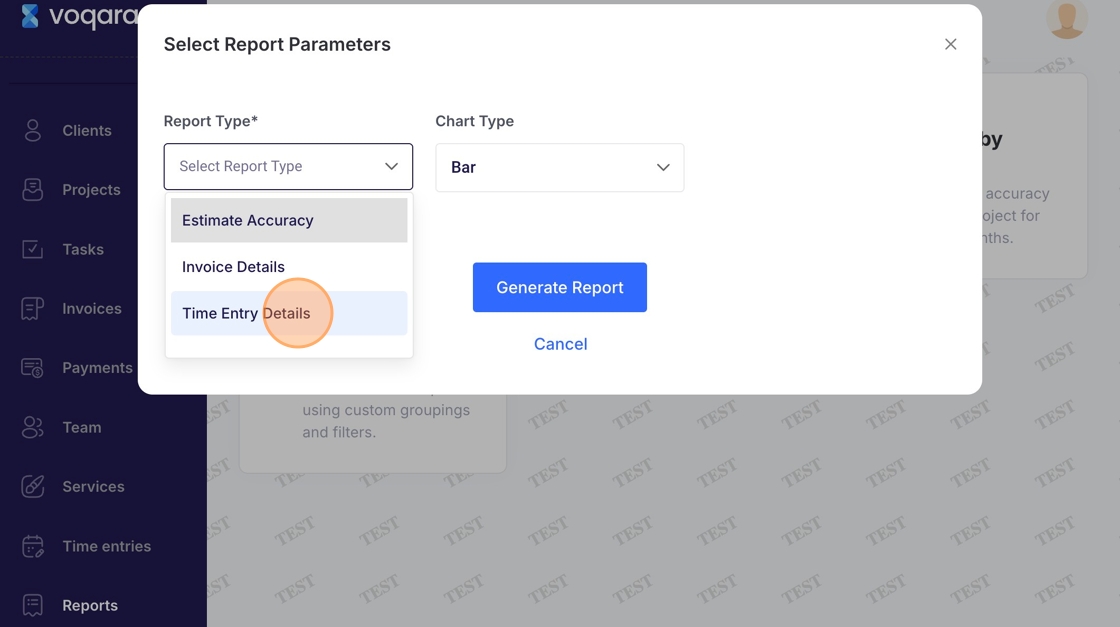
6. Click "Show Additional Filters +"
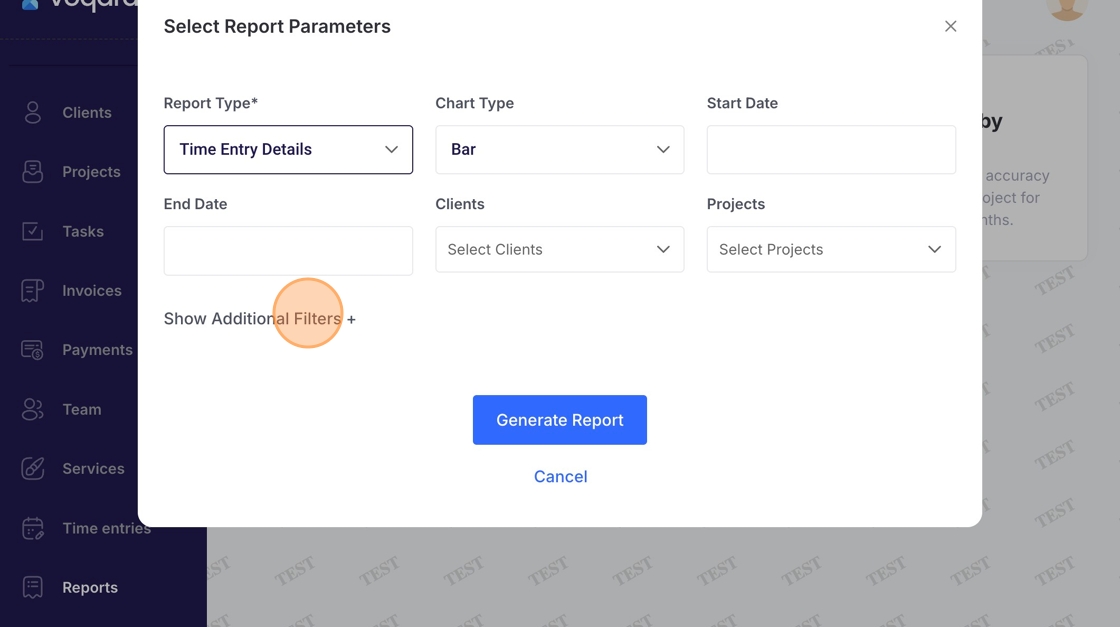
7. Click "Start Date" field
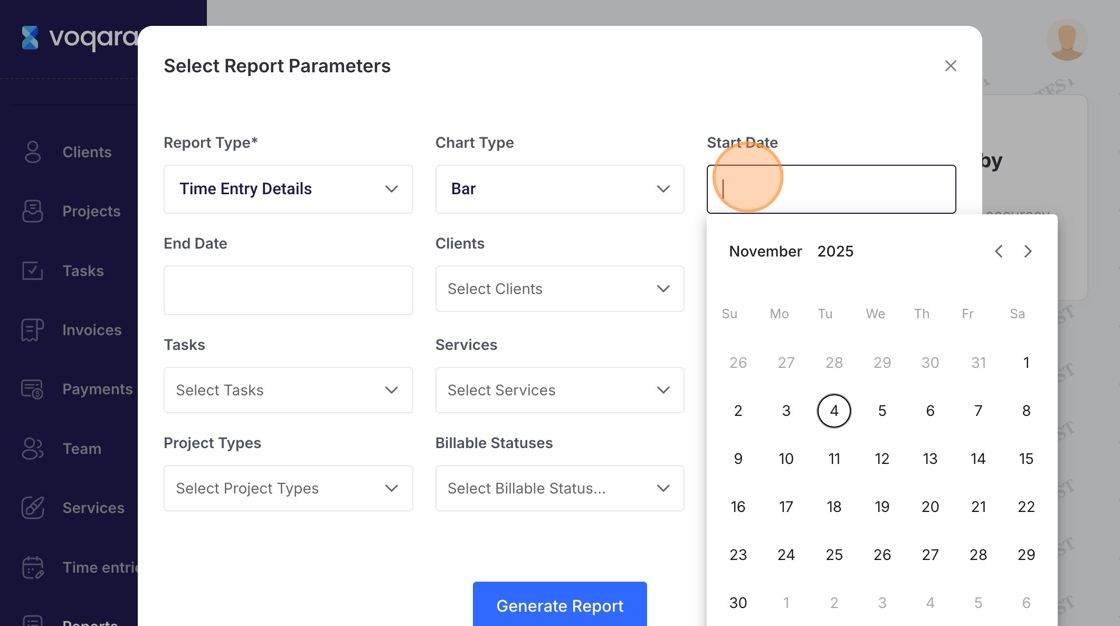
8. Select a start date
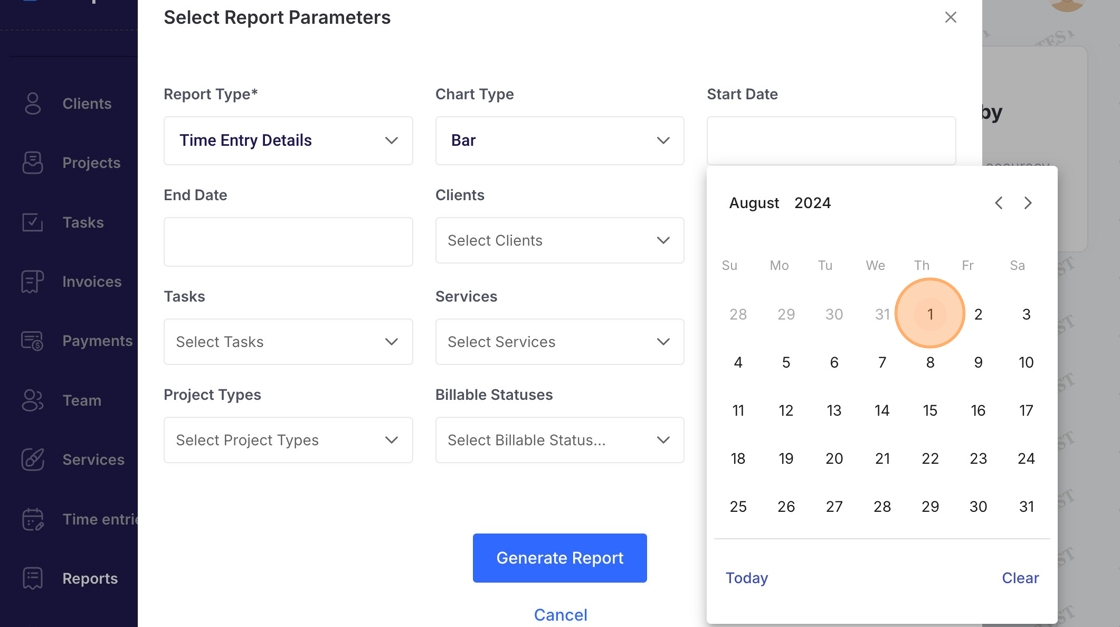
9. Click "End Date" field
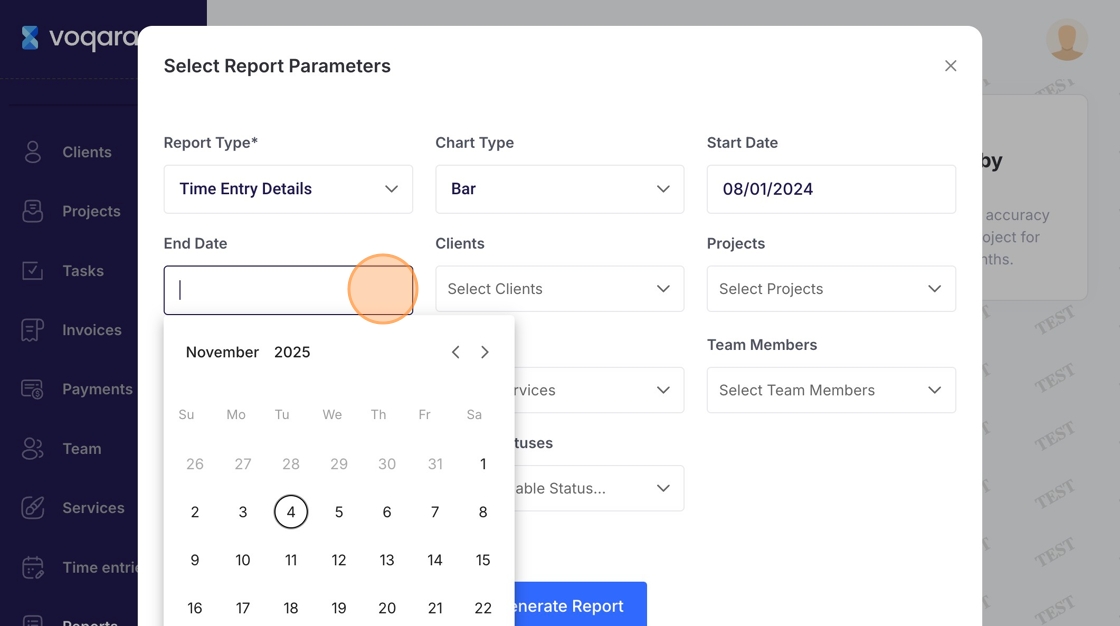
10. Select and end date
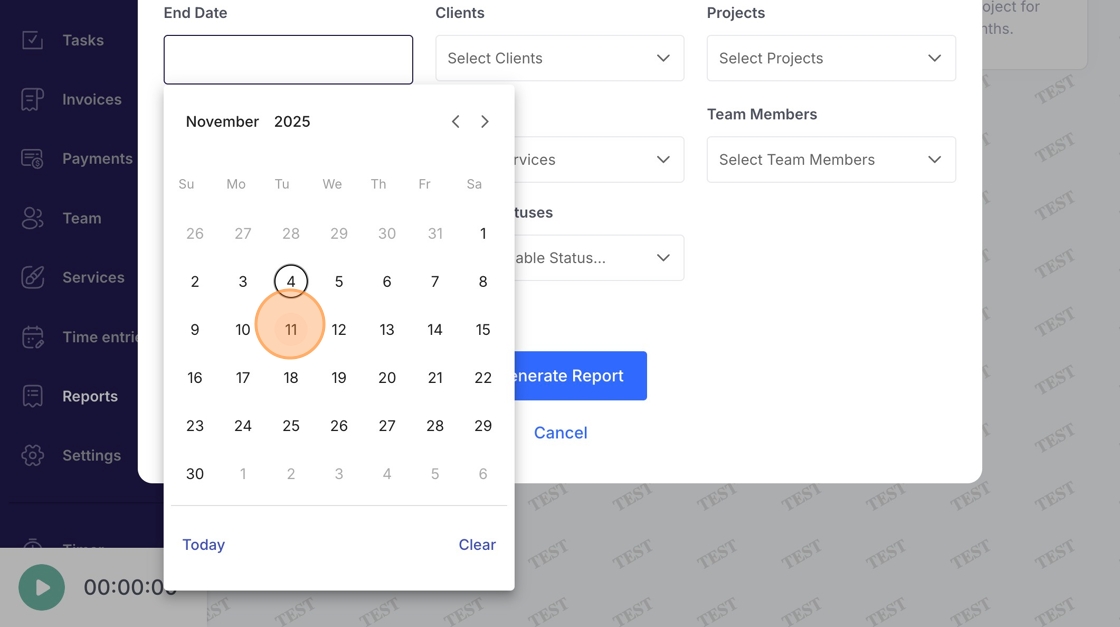
11. Click "Clients" dropdown menu
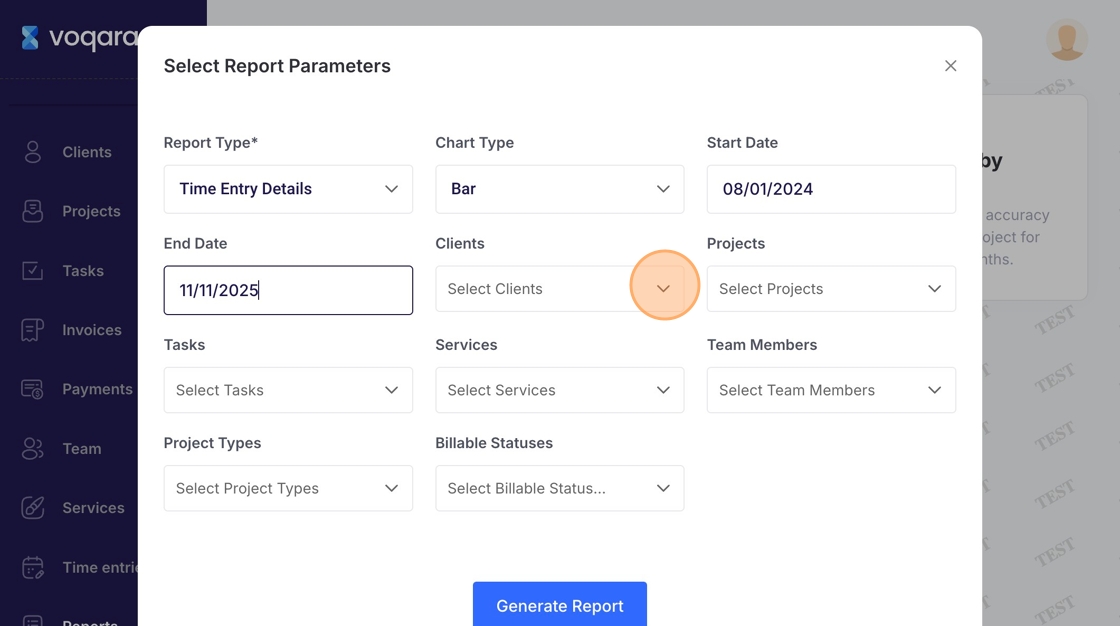
12. Select a client
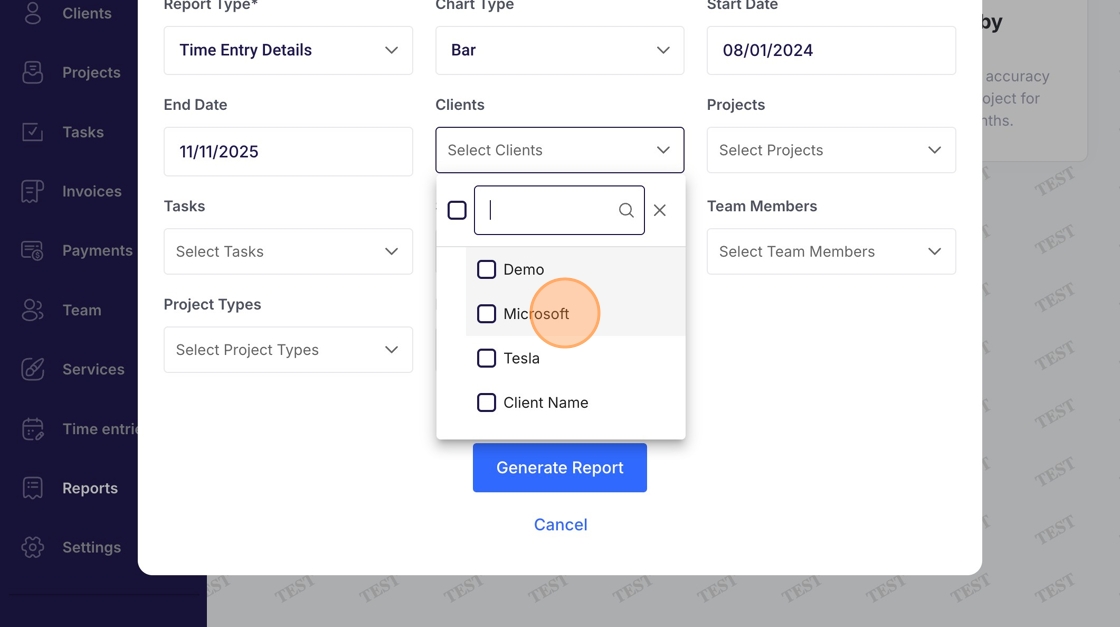
13. Click "Projects" dropdown menu
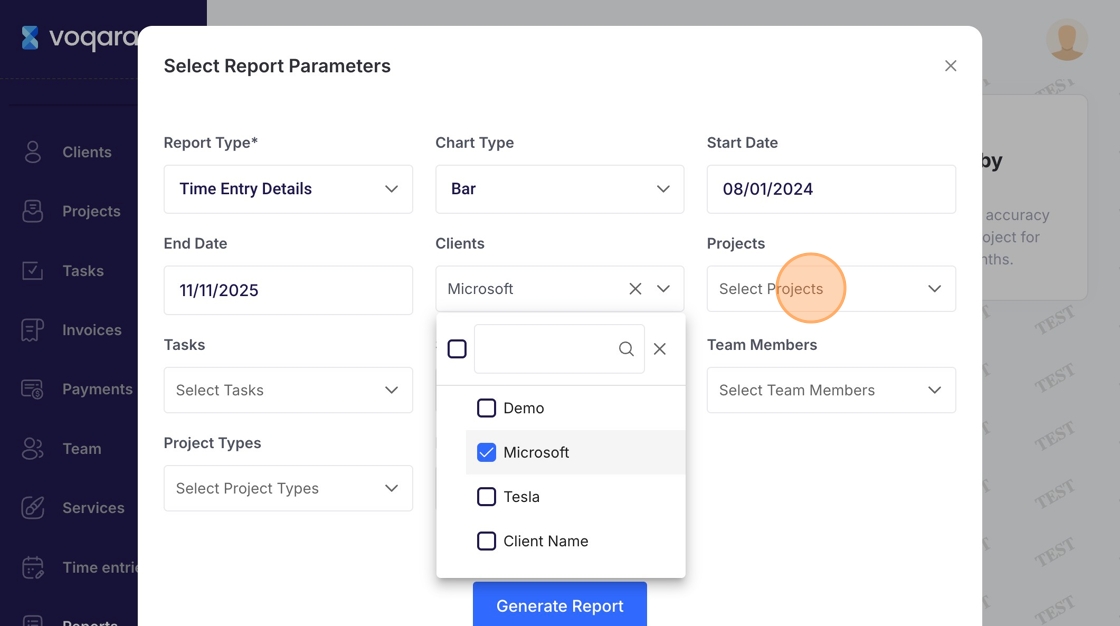
14. Select project(s)
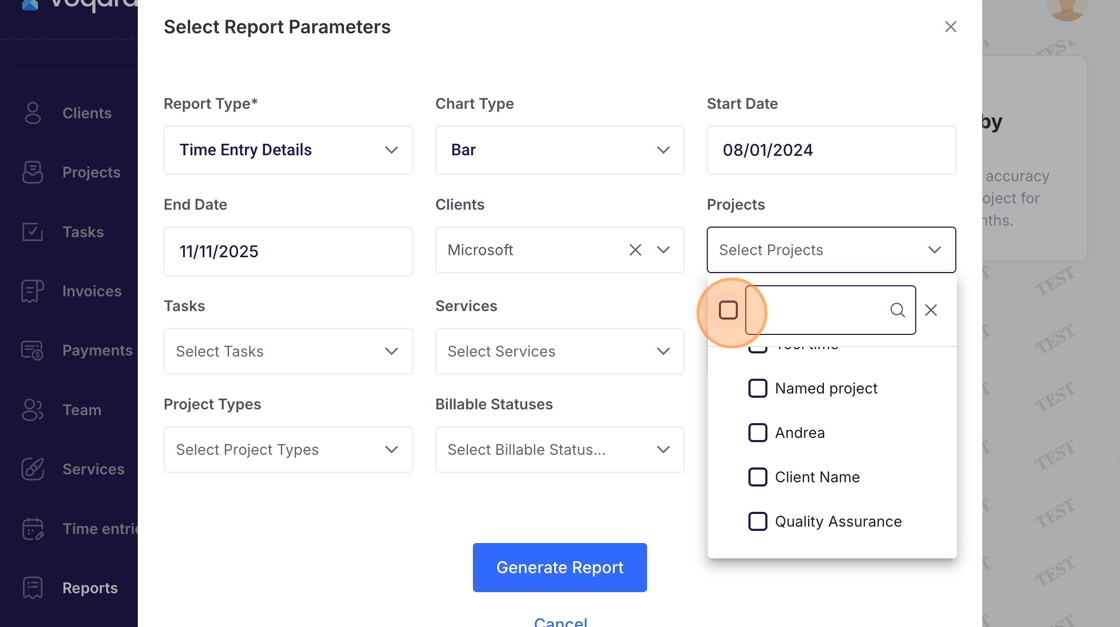
15. Select a task if desired
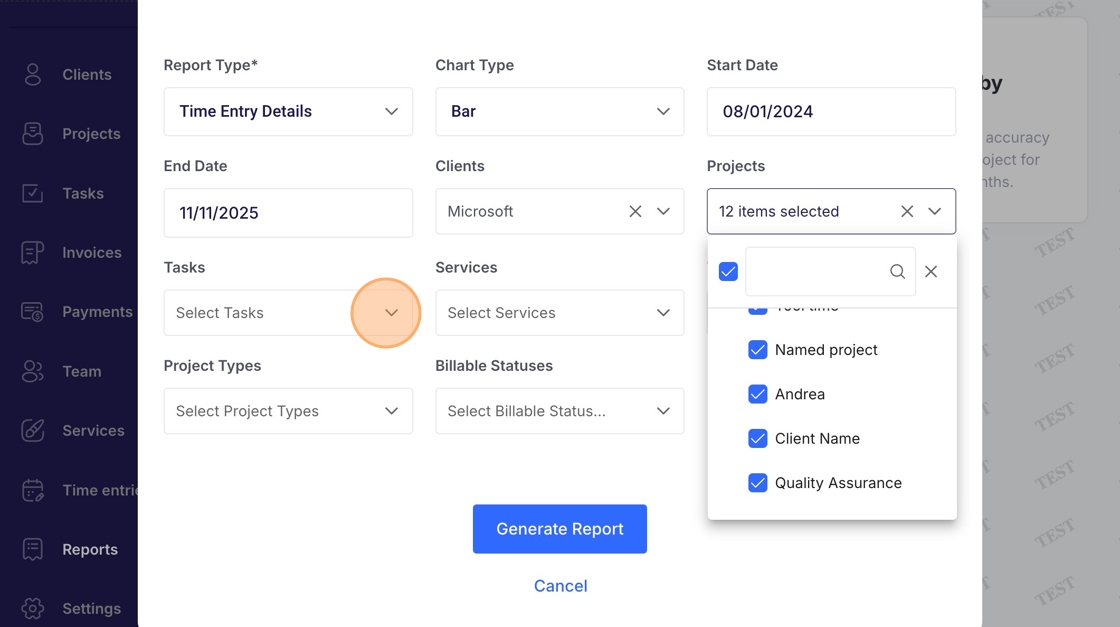
16. Select a service if applicable
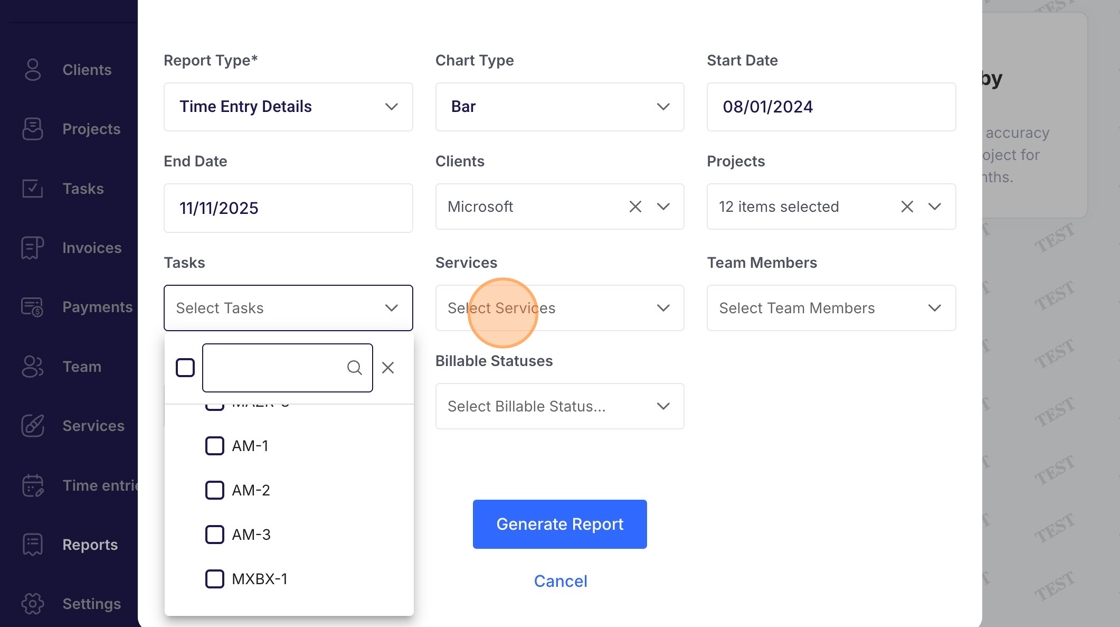
17. Select team member(s) if applicable
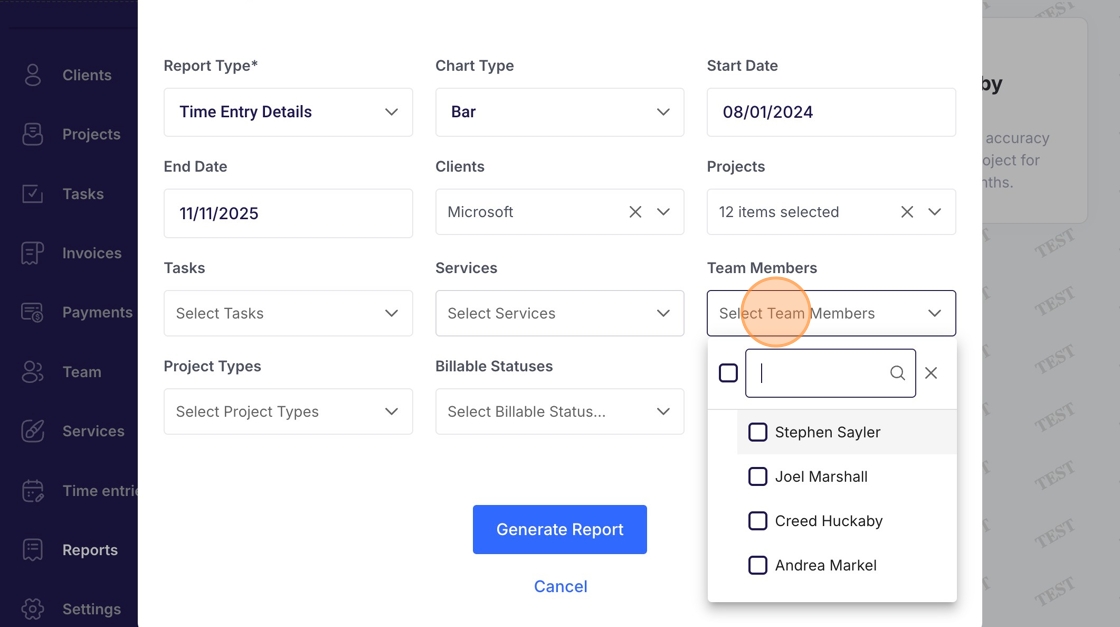
18. Select project type(s) if applicable
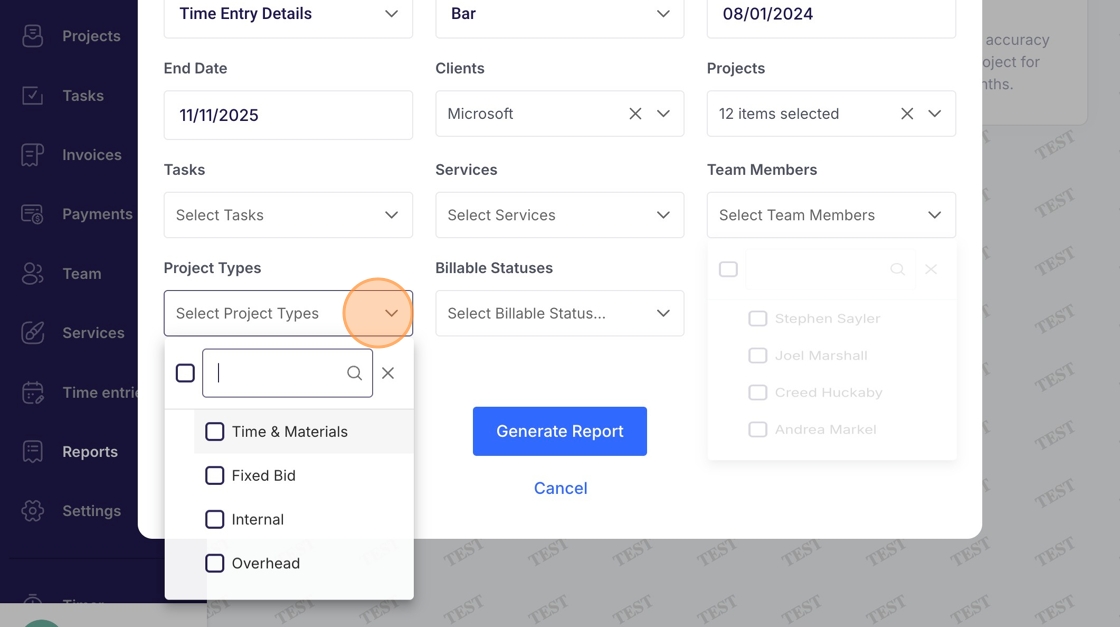
19. Choose billable status(es) if applicable
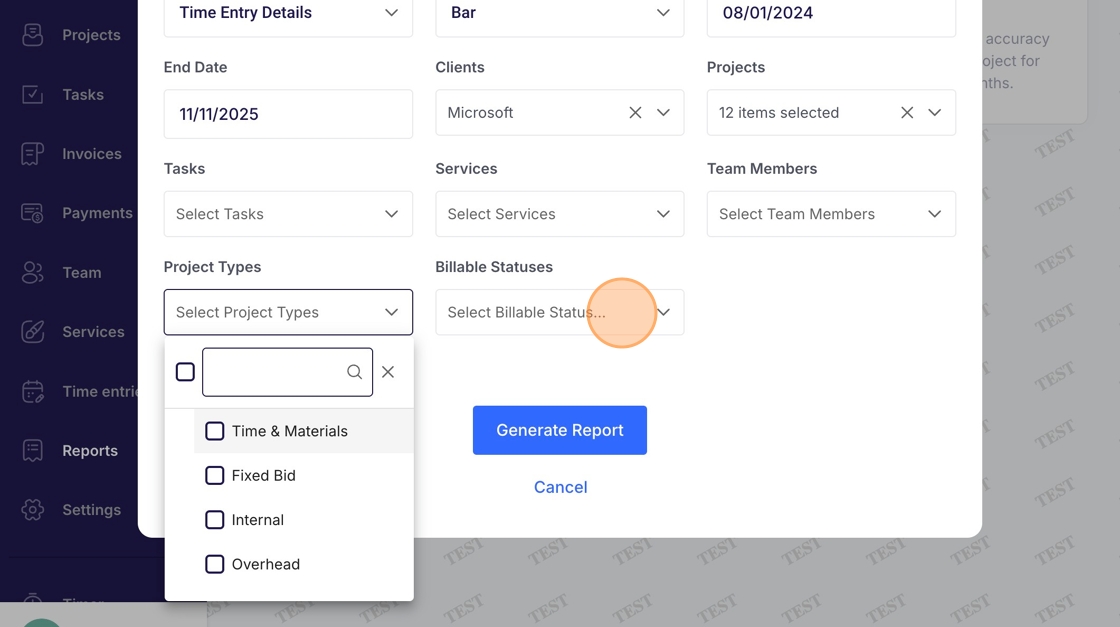
20. Click "Generate Report"
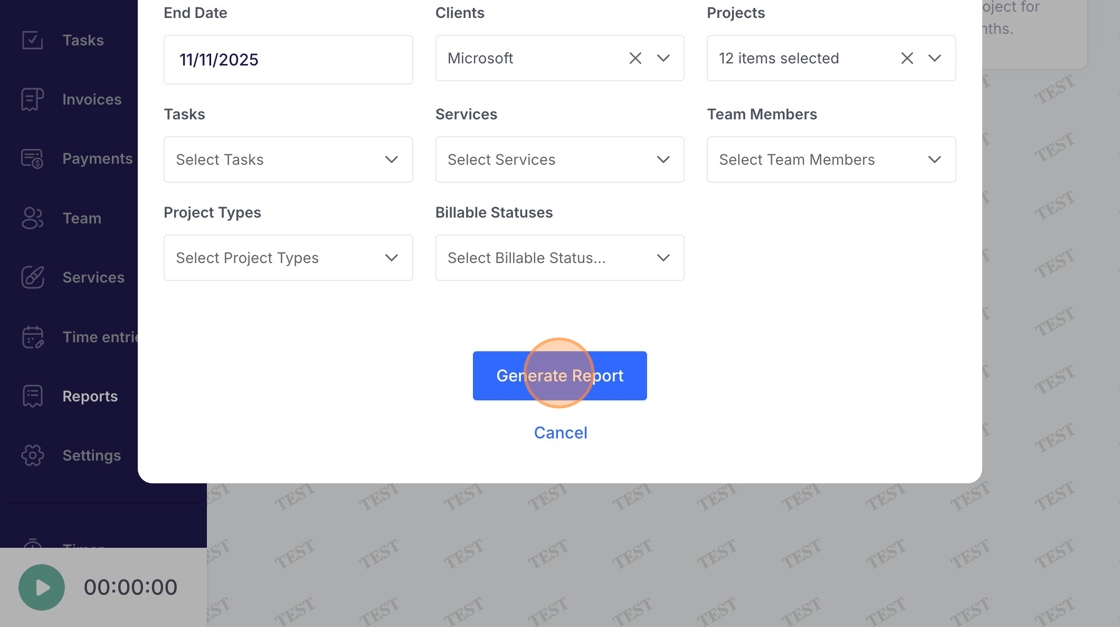
21. Click "Show Additional Filters"
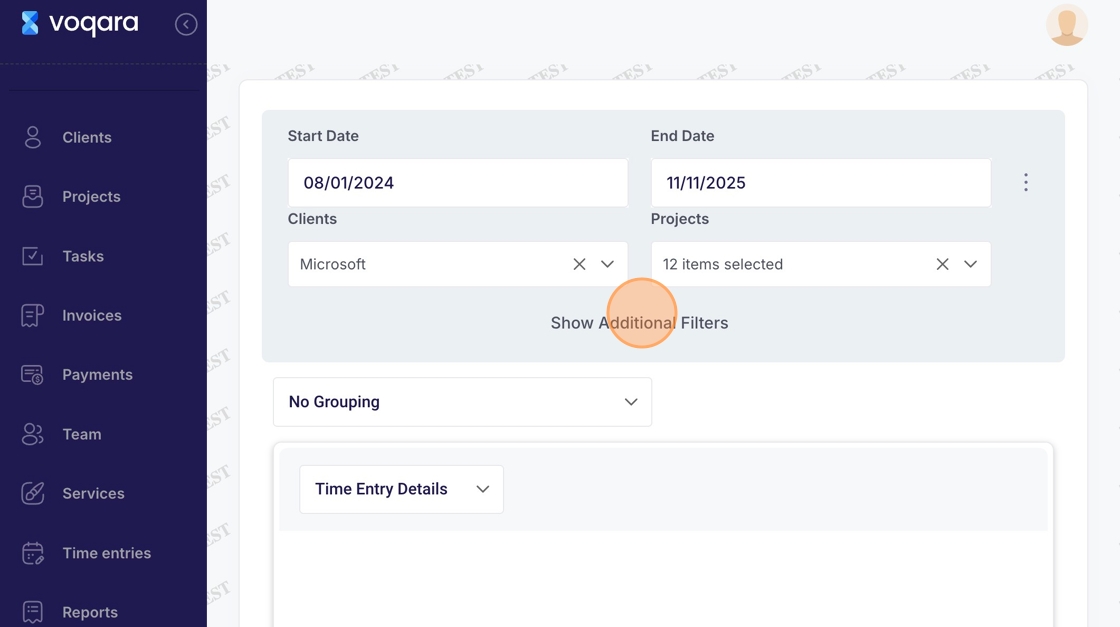
22. Select a task (if applicable)
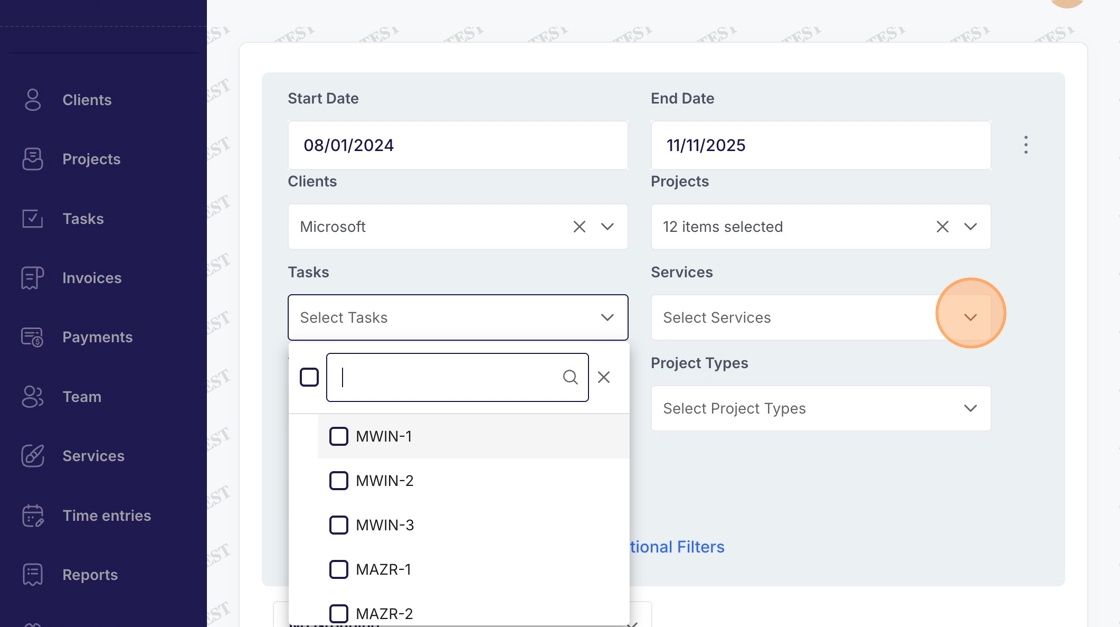
23. Select a service (if applicable)
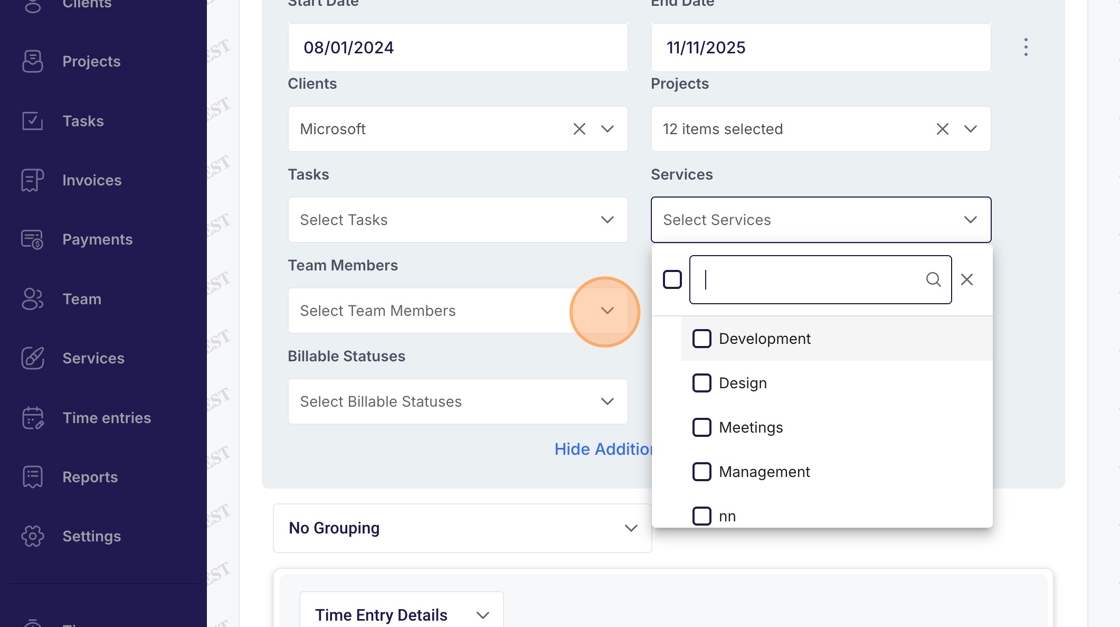
24. Select a project type (if applicable)
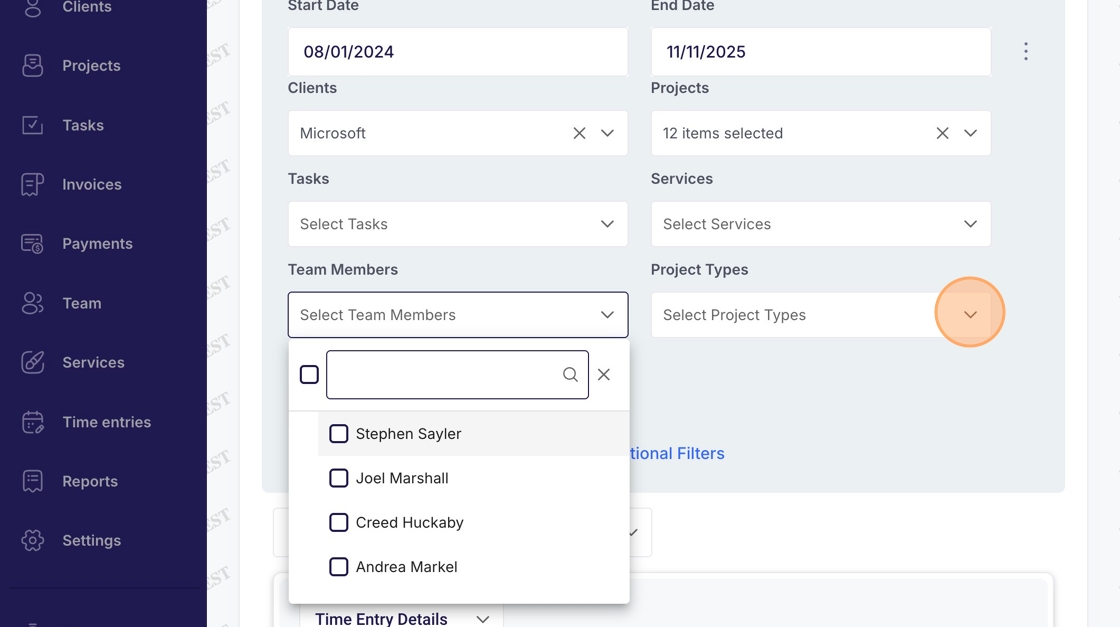
25. Select billable status (if applicable)
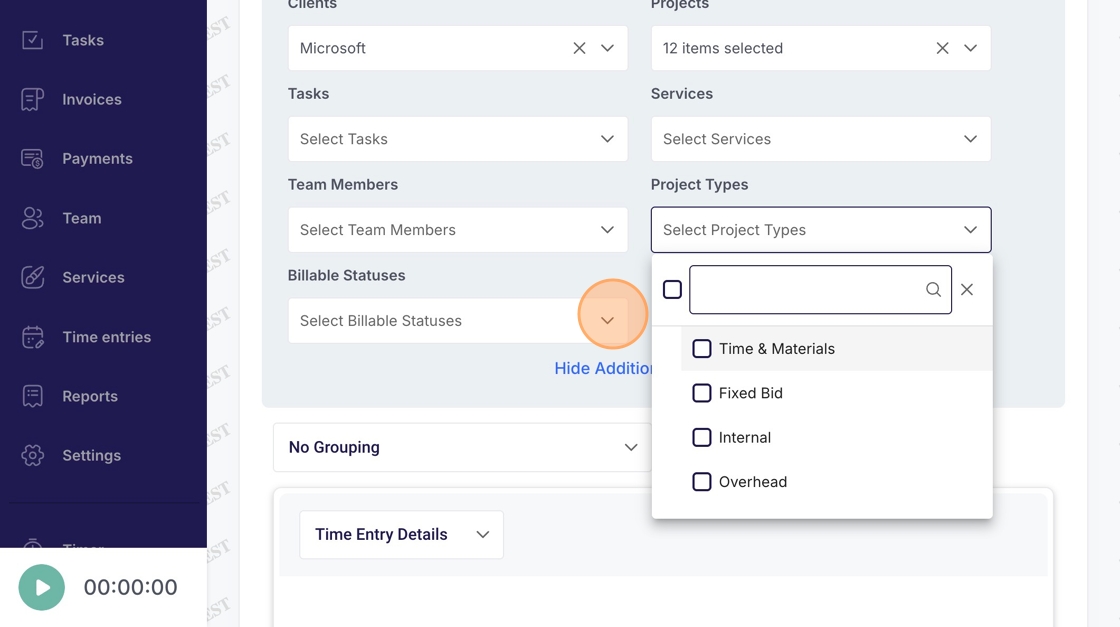
26. Click "Grouping" dropdown menu
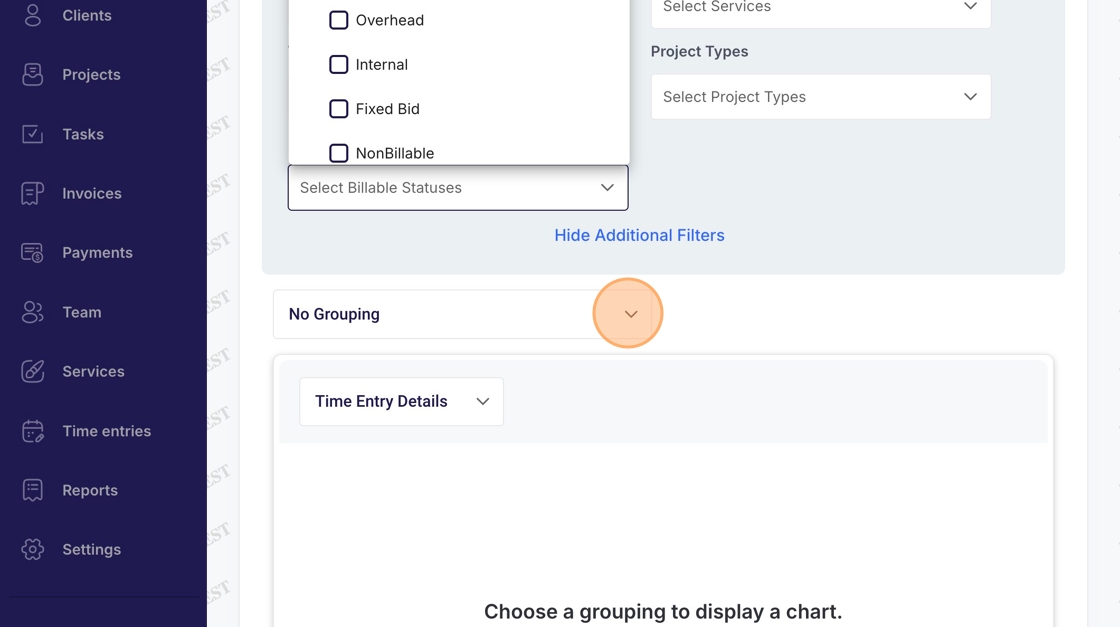
27. Select a grouping
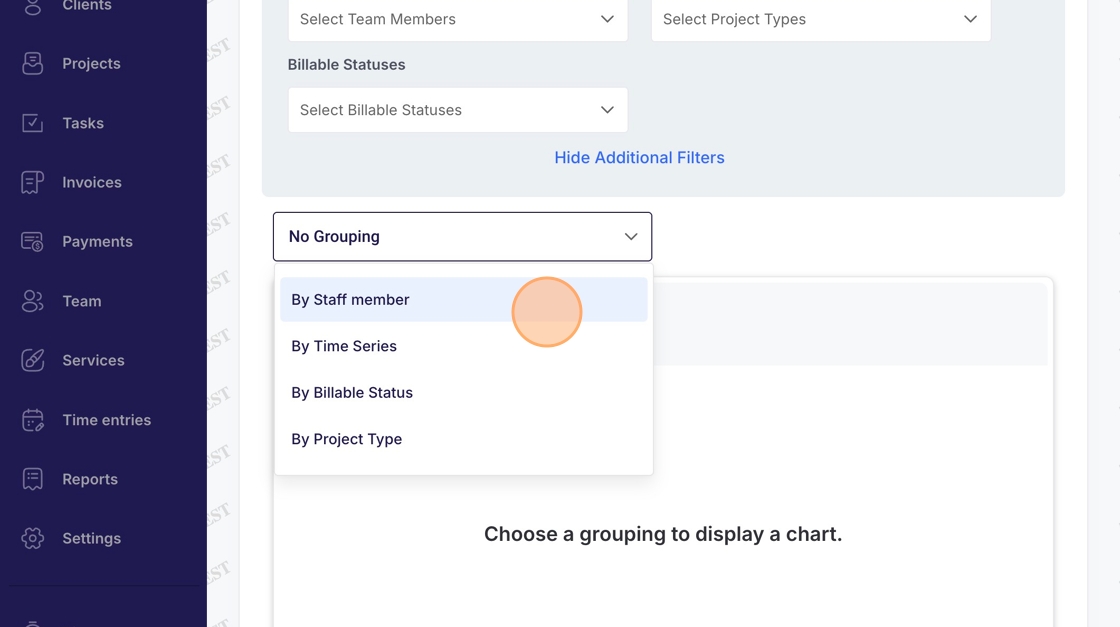
28. Select a secondary grouping (if desired)
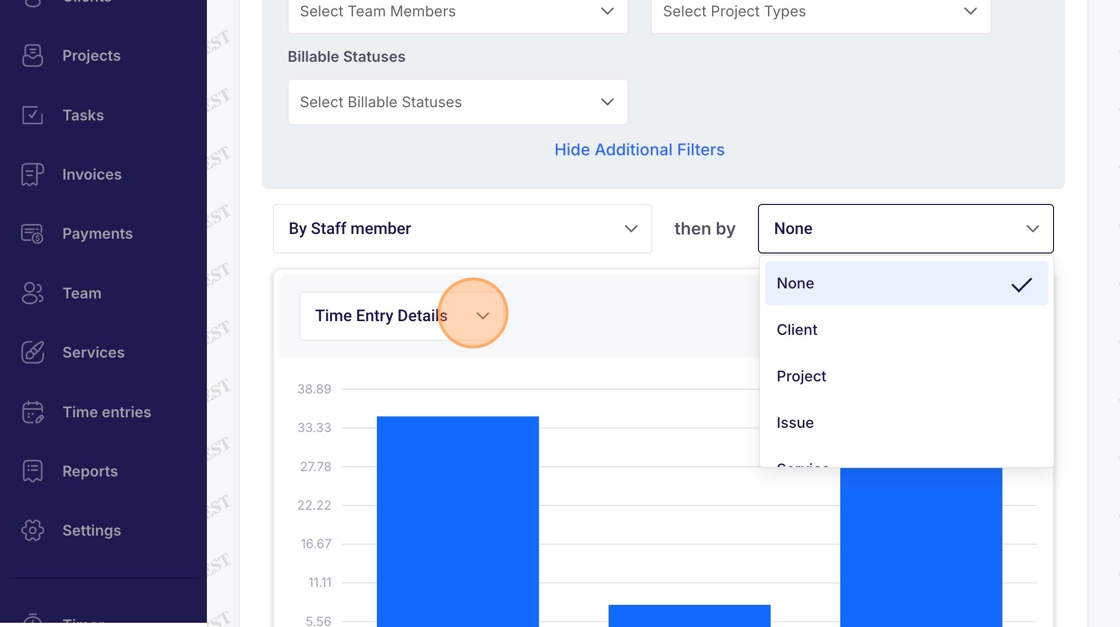
29. Scroll down to see additional details of the Custom Report generated