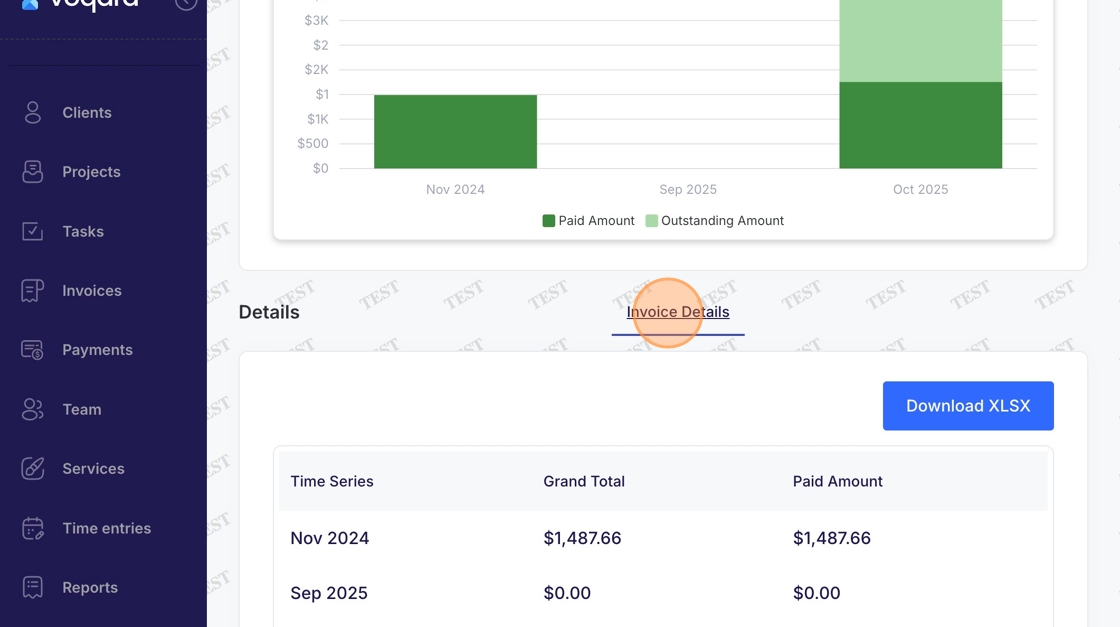
Reports - Revenue by Month
This guide demonstrates how to access and analyze monthly revenue reports in Voqara.
Made by Tusk Support with Scribe
This guide demonstrates how to access and analyze monthly revenue reports in Voqara.
1. Log into Voqara
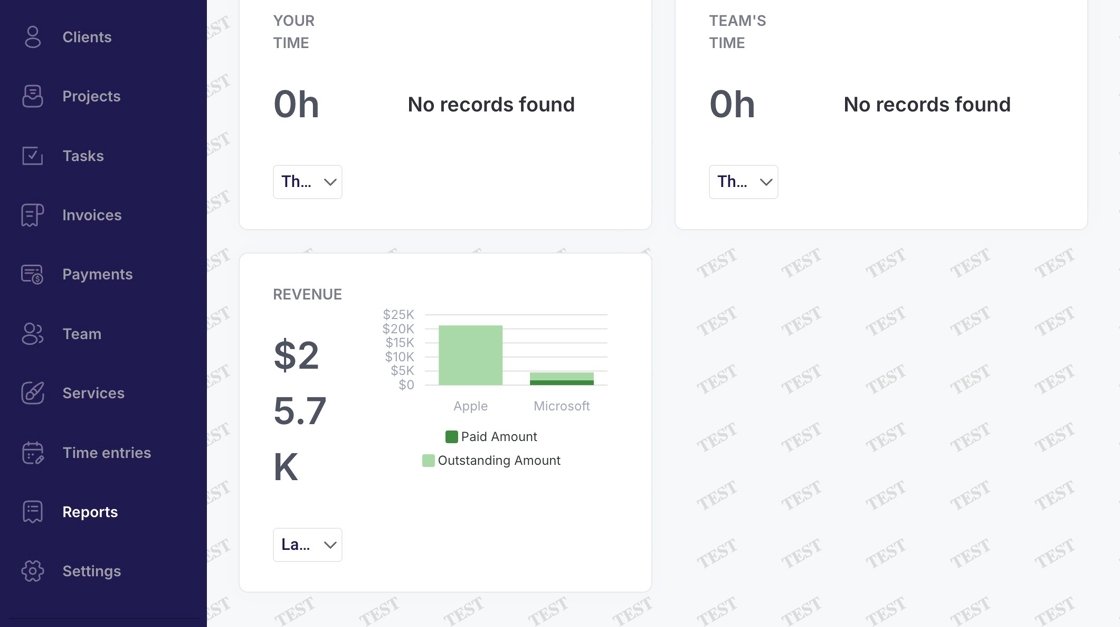
2. Navigate to "Reports"
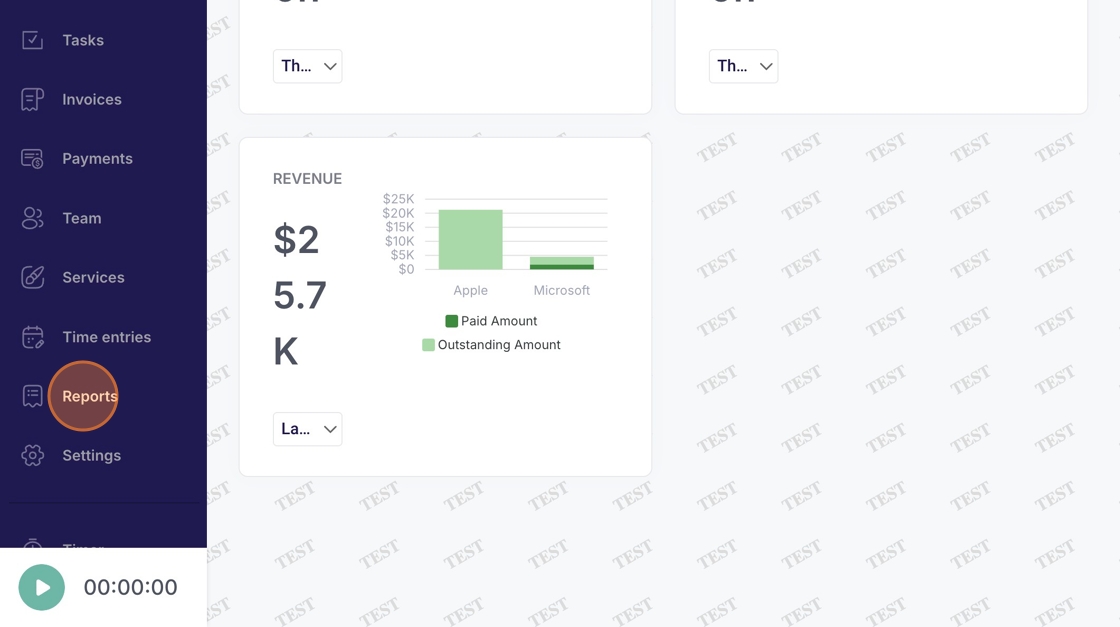
3. Click "Revenue by month"
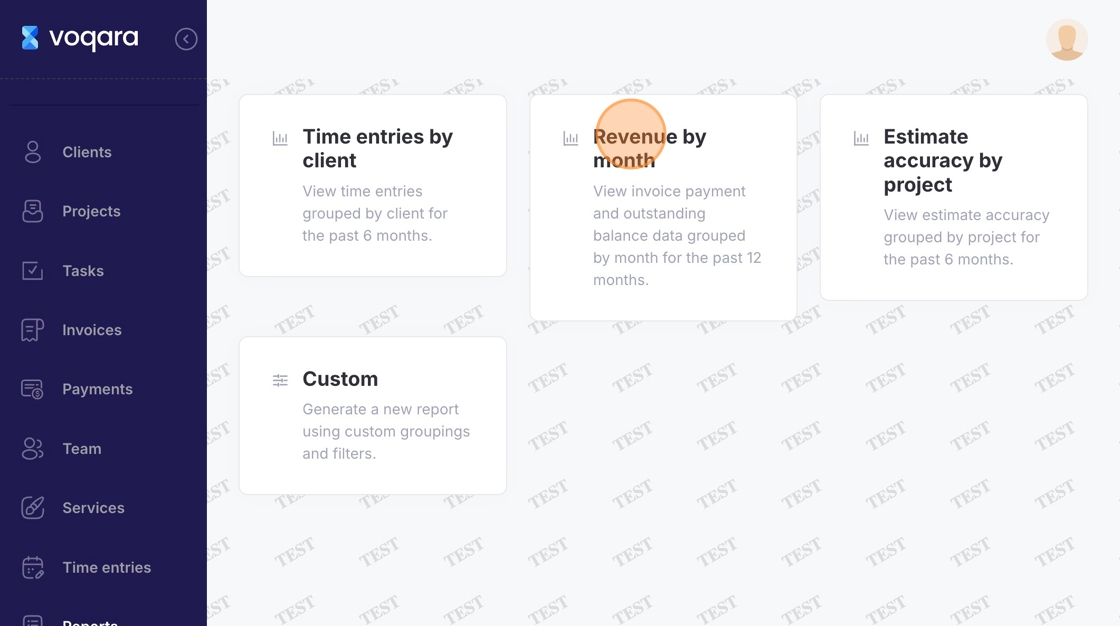
4. Enter start and end dates
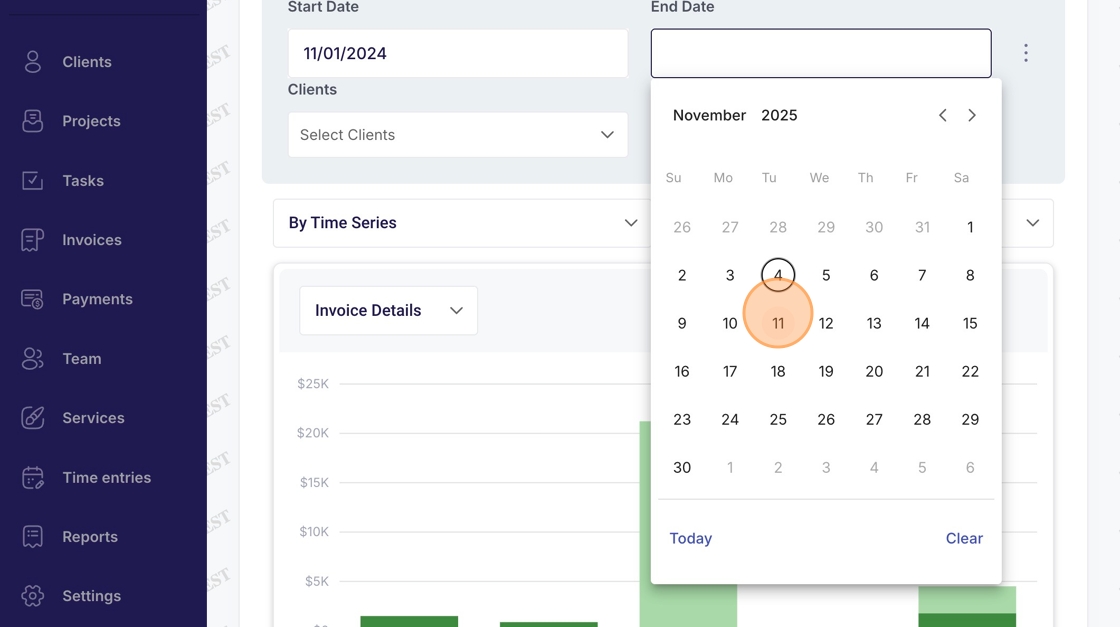
5. Click "Clients" dropdown menu
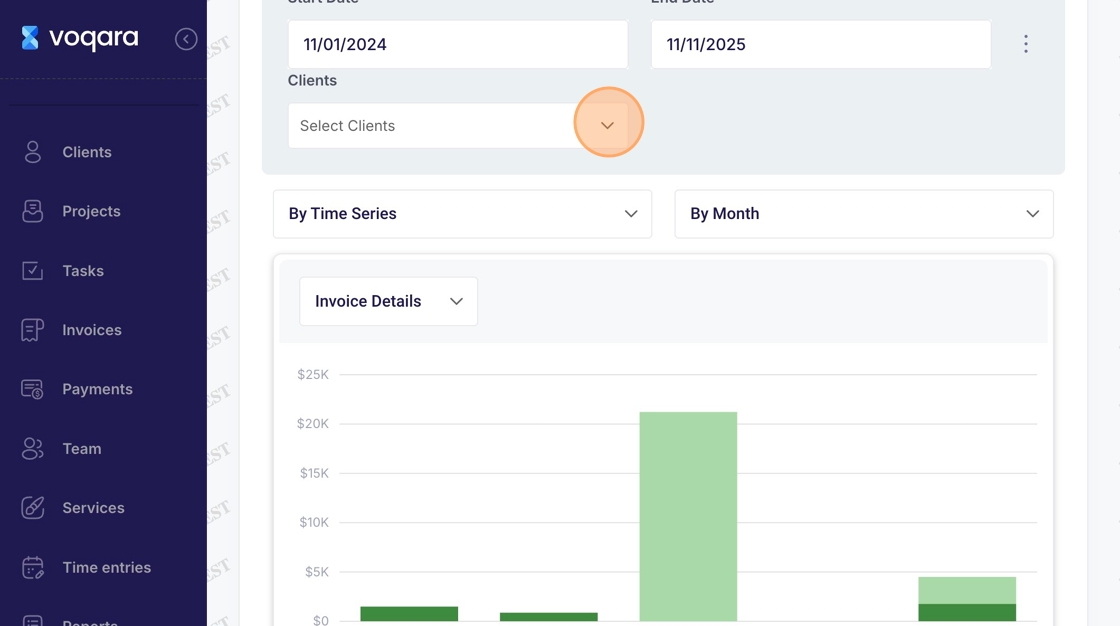
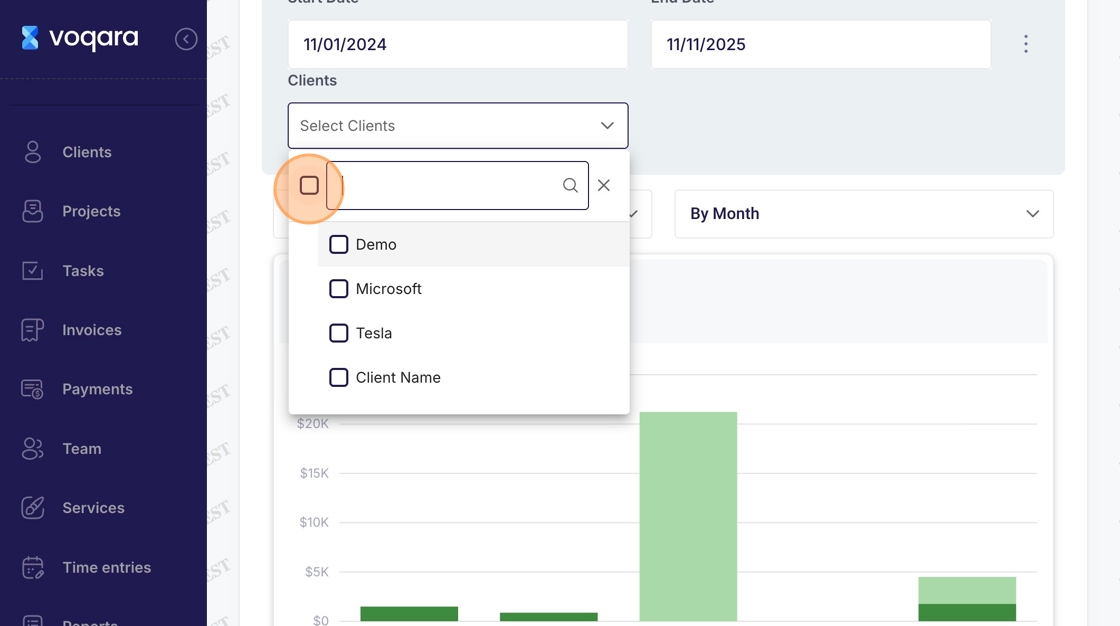
6. Select client(s)
7. Click grouping dropdown menu
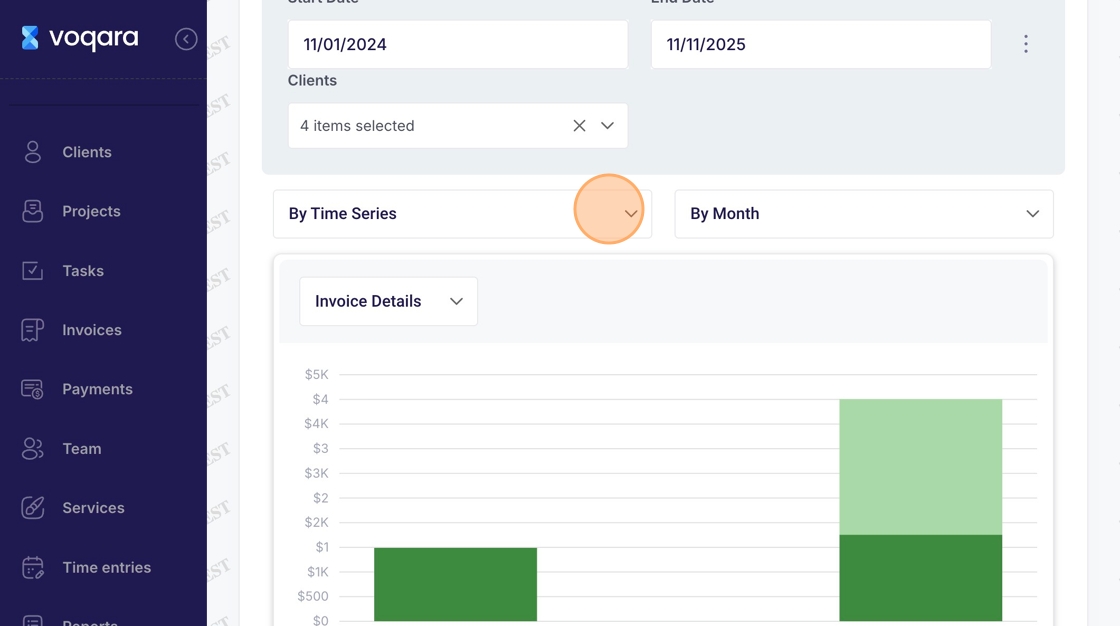
8. Select a grouping
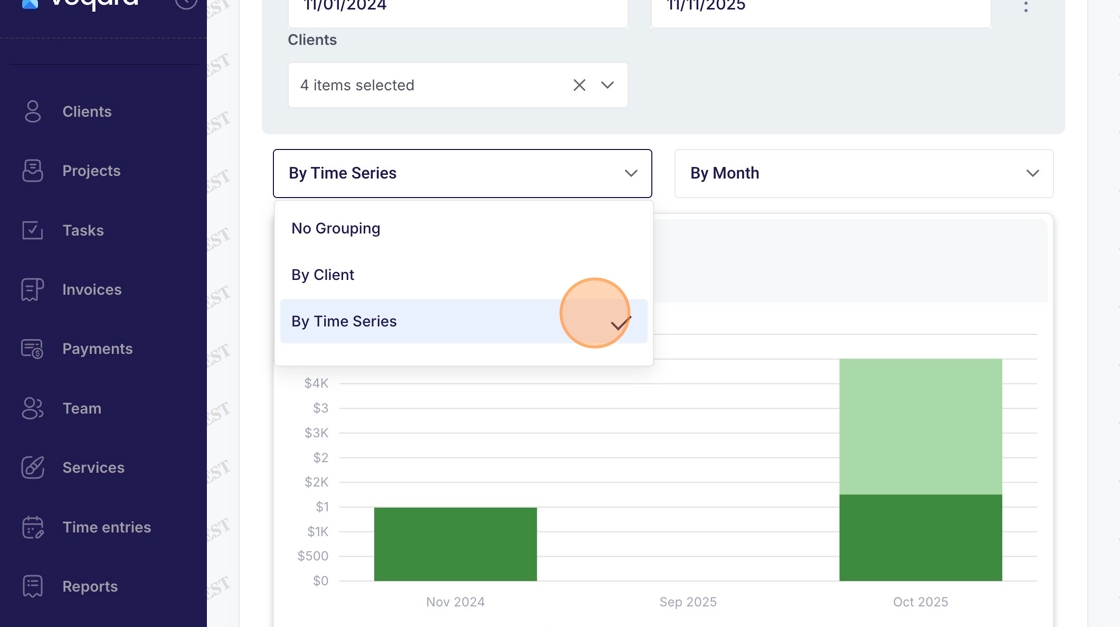
9. Click time grouping dropdown menu
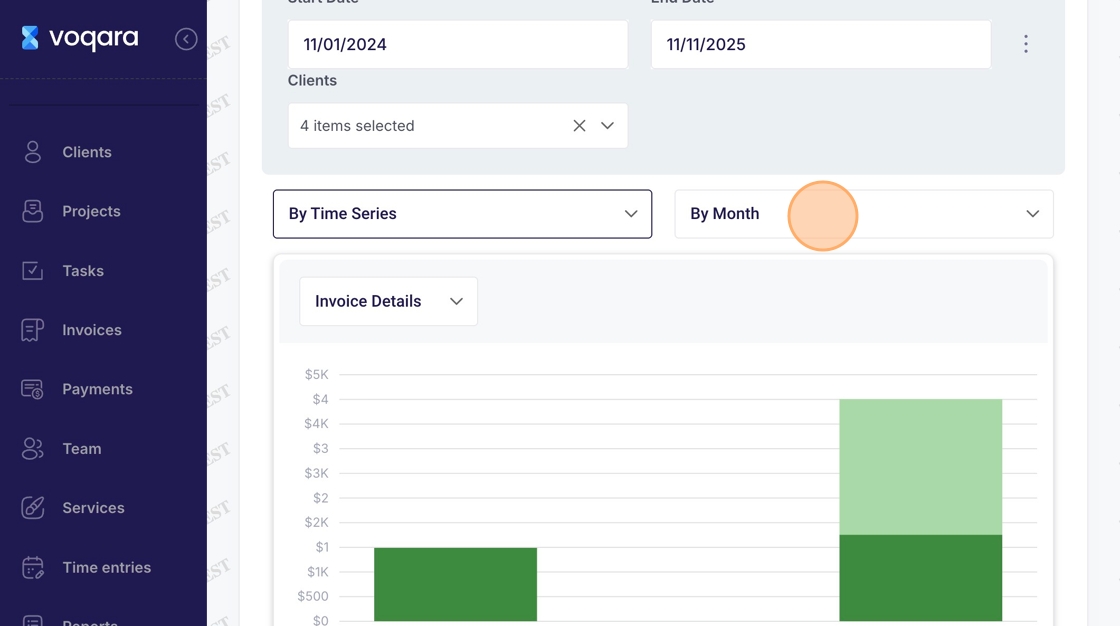
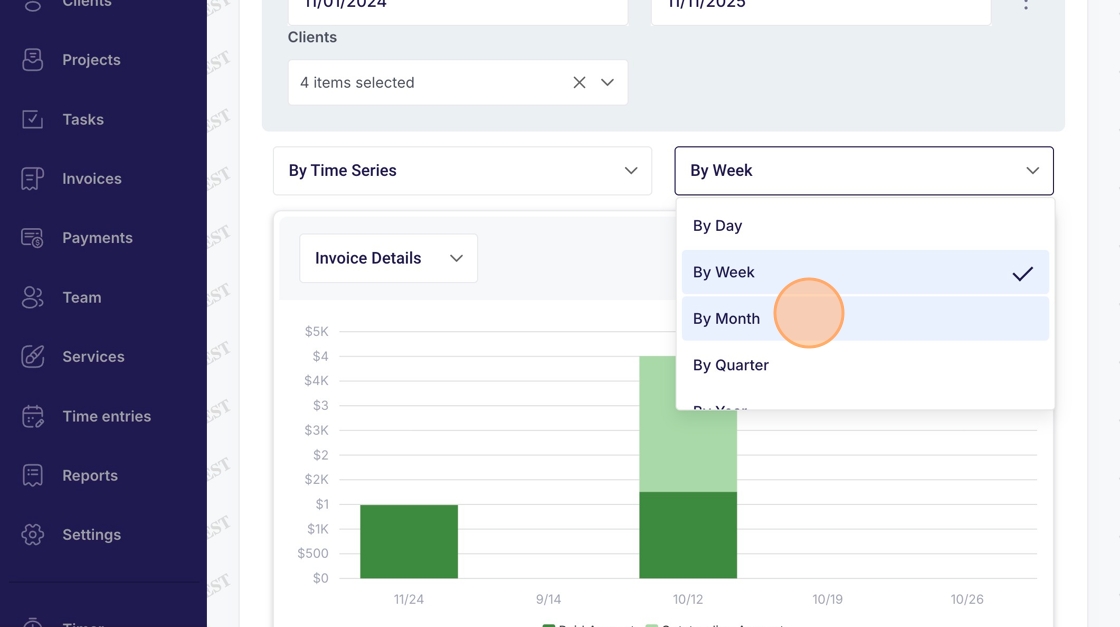
10. Select a time grouping
11. Click category dropdown menu
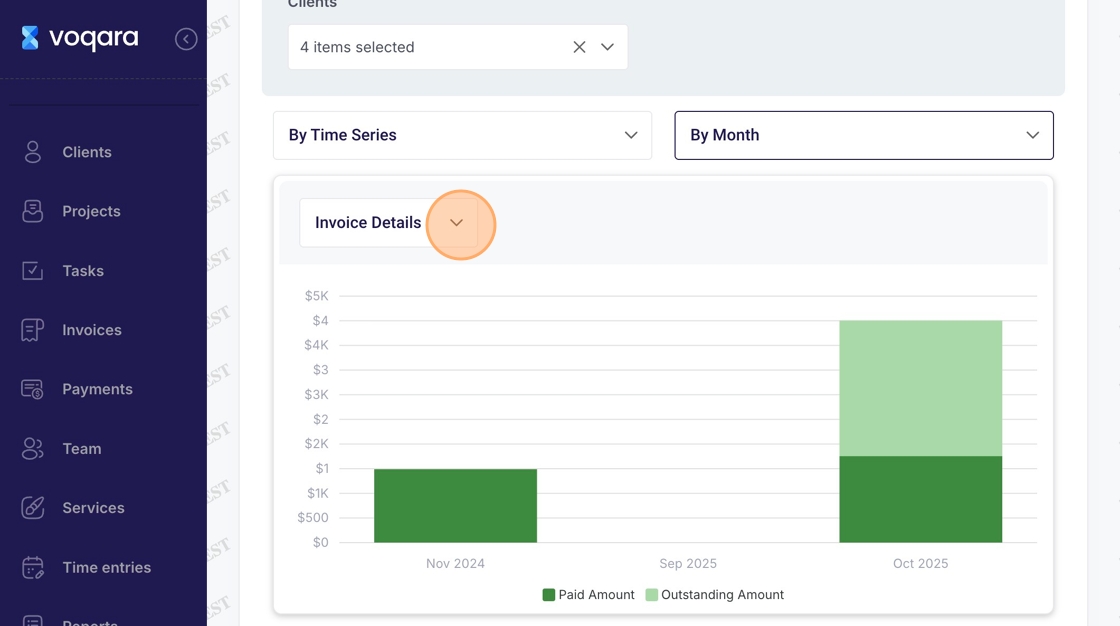
12. Select a category grouping
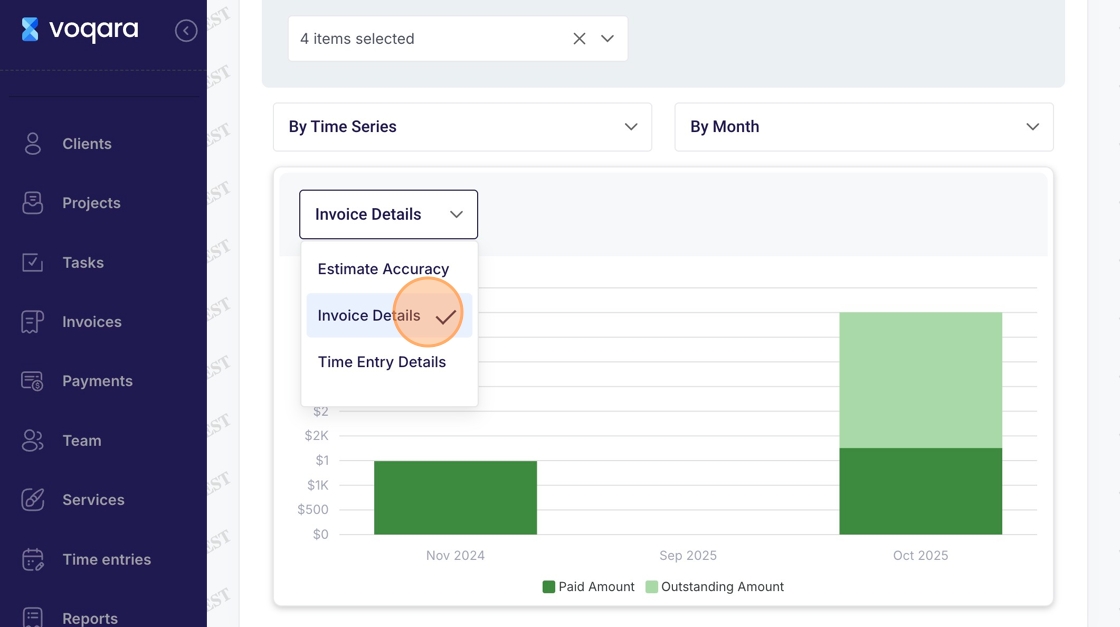
13. Scroll down to view additional details for Revenue by Month